What Is TTS on Twitch: How to Do TTS on Twitch?



Key Takeaways
- Twitch now has over 240M monthly active users, and TTS has become a go-to feature for streamers who want to boost engagement and make chat more interactive.
- Streamers use TTS to increase participation, add entertainment value, reward donations or channel point redemptions, and create a more inclusive community.
- Setting up TTS is simple through Streamlabs, OBS, or StreamElements, with options to customize voices, speed, and moderation rules.
- TTS Monster has emerged as a popular third-party option in 2025/2026 for its AI voice variety and channel point integration.
- Using TTS effectively means balancing fun with control: respond to spoken messages, filter inappropriate content, and avoid overusing the feature.
- Beyond Twitch, TTS powers accessibility tools, voice assistants, audiobooks, customer service automation, and language learning.
240 million in 2025 and still counting. That's the number of the monthly active users on Twitch!
Live streaming isn't just entertainment anymore. It's culture, community, and a whole lot of chaos unfolding in real time. With its massive audience tuning in daily, Twitch has evolved from a gaming-only playground to a global stage where creators host talk shows, share creative content, run watch-alongs, and build loyal fandoms one inside joke at a time.
And in this world where connection is everything, learning how to do text to speech on Twitch has become a favorite move for streamers who want to pull their audience right into the action.
Text to Speech, or TTS on Twitch, takes ordinary chat messages and transforms them into spoken audio that plays during live streams. Instead of viewers hoping their message gets noticed, they can literally have their words read aloud. It's fun, boosts viewer engagement, and opens the door to a more accessible and inclusive environment.
What Is TTS on Twitch?
Twitch Text-to-Speech (TTS) is a feature that reads chat messages aloud during a live stream. When someone sends a message — typically tied to a donation, channel point redemption, or subscriber event — it doesn't just sit in the chat box. It gets spoken aloud for everyone to hear.
Many streamers connect text to speech AI to donations or channel point rewards so it becomes a moment people pay attention to. It also helps viewers who can't easily read chat or prefer listening while they watch.
At its core, text to speech on Twitch lets more people be part of the conversation. Streamers can interact with their audience in real time, enhancing viewer engagement and building a dynamic community atmosphere.
Benefits: Why Use TTS on Twitch
Using Twitch TTS offers several benefits that collectively contribute to a more dynamic, inclusive, and enjoyable streaming experience for all involved.
Enhanced Viewer Engagement
When chat messages are read aloud, viewers feel like they're really part of the conversation. It's no longer just text on a screen; people can hear their words and know the streamer is responding. That kind of interaction encourages viewers to stick around and participate more.
Entertainment Value for Users and Viewers
TTS adds a playful element to streams. Streamers can respond creatively and viewers enjoy hearing their messages out loud. It keeps things lively and makes the experience feel more interactive.
Accessibility and Inclusivity
TTS helps viewers who might have trouble reading chat or prefer listening. It makes the stream easier to follow and opens it up to more people, creating a more inclusive environment.
Creativity and Innovation
It also adds a bit of novelty. Streamers can use different voices, tie messages to channel points or subscriber rewards, or just have fun with the way messages are read. Small touches like these make streams feel unique and more engaging.
How to do TTS on Twitch? Step by Step Guide
Setting up TTS on Twitch is a straightforward process that can enhance interactivity during your streams. Here is a step-by-step guide to enable Twitch TTS:
Step 1: Access Your Twitch Account
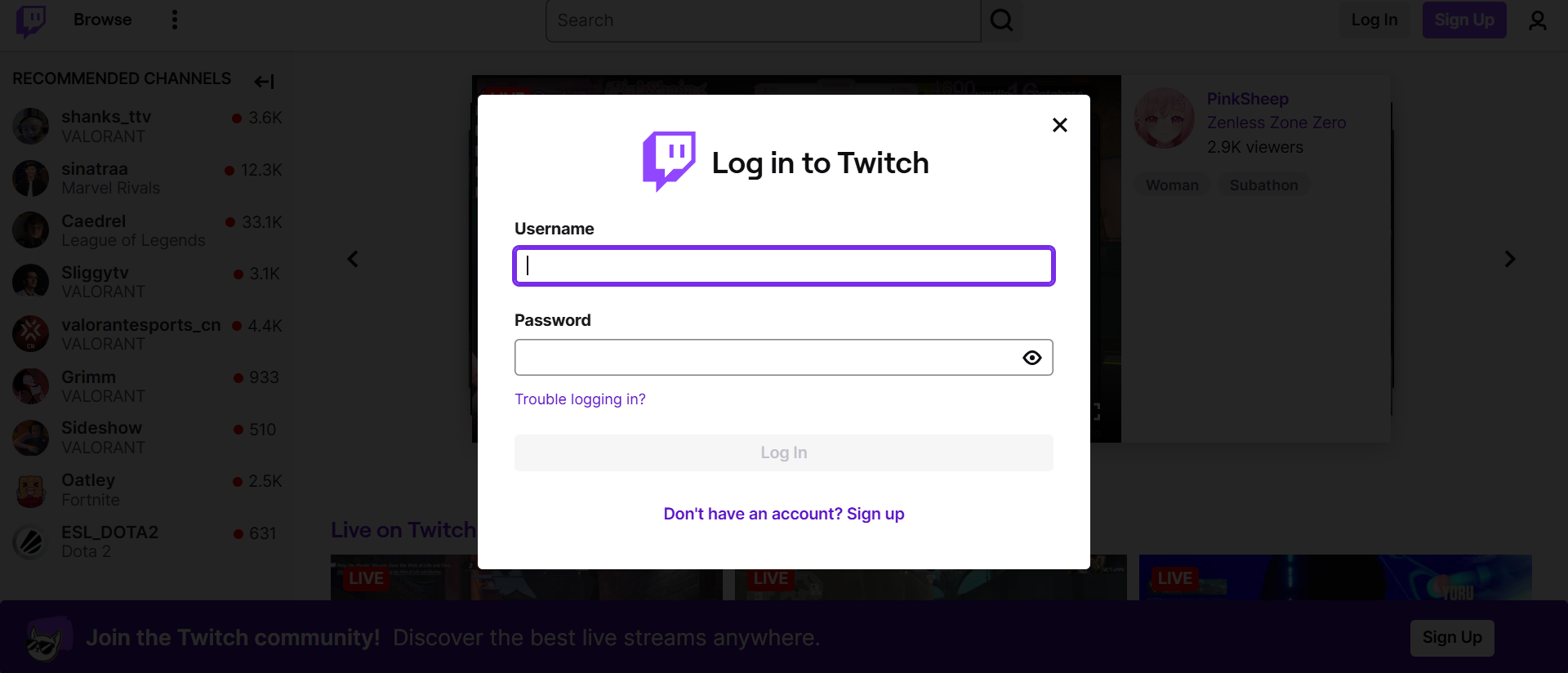
Log in to your Twitch account and ensure your streaming software is linked. This integration is necessary for TTS to function seamlessly during your live broadcasts.
Step 2: Open Streamlabs or OBS
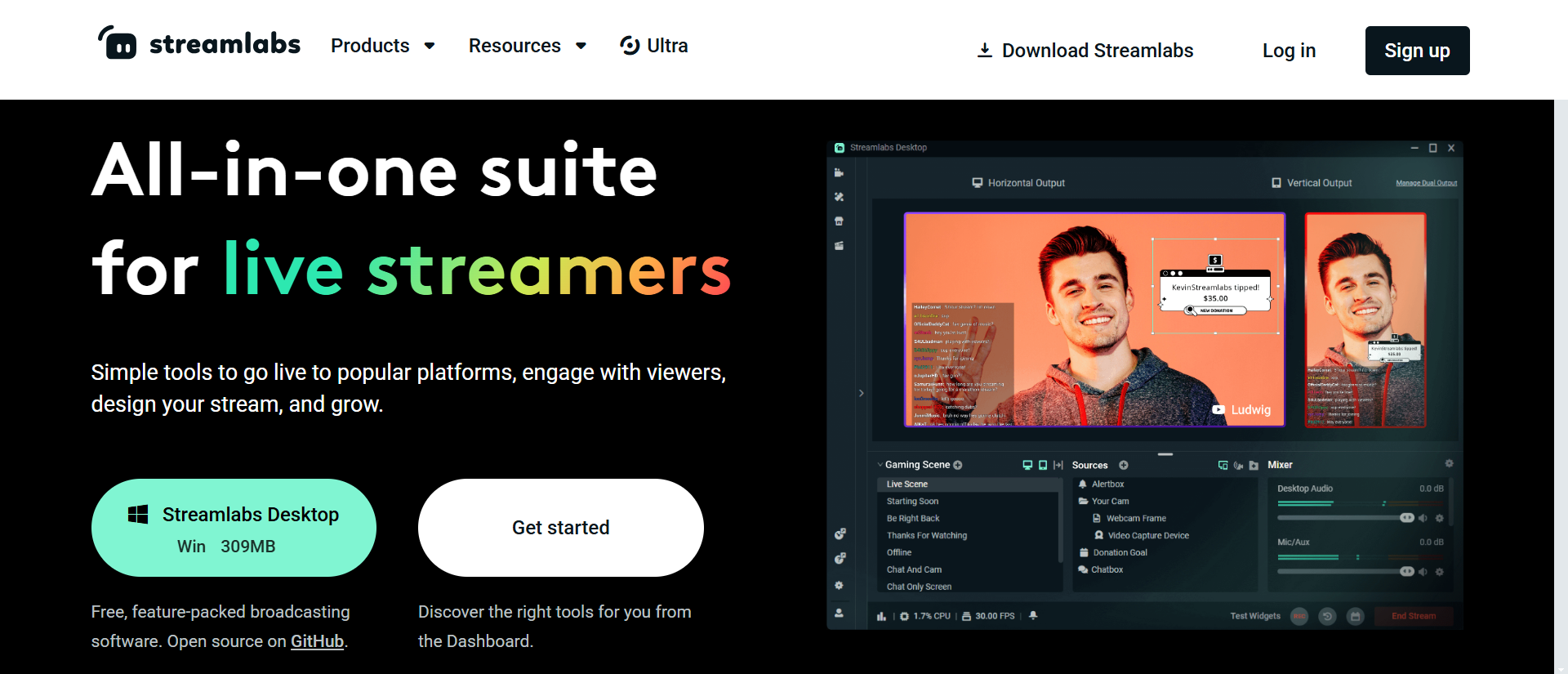
Launch your preferred streaming software, such as Streamlabs or OBS. These tools are essential for customizing alerts and enabling TTS.
Step 3: Add the TTS Widget
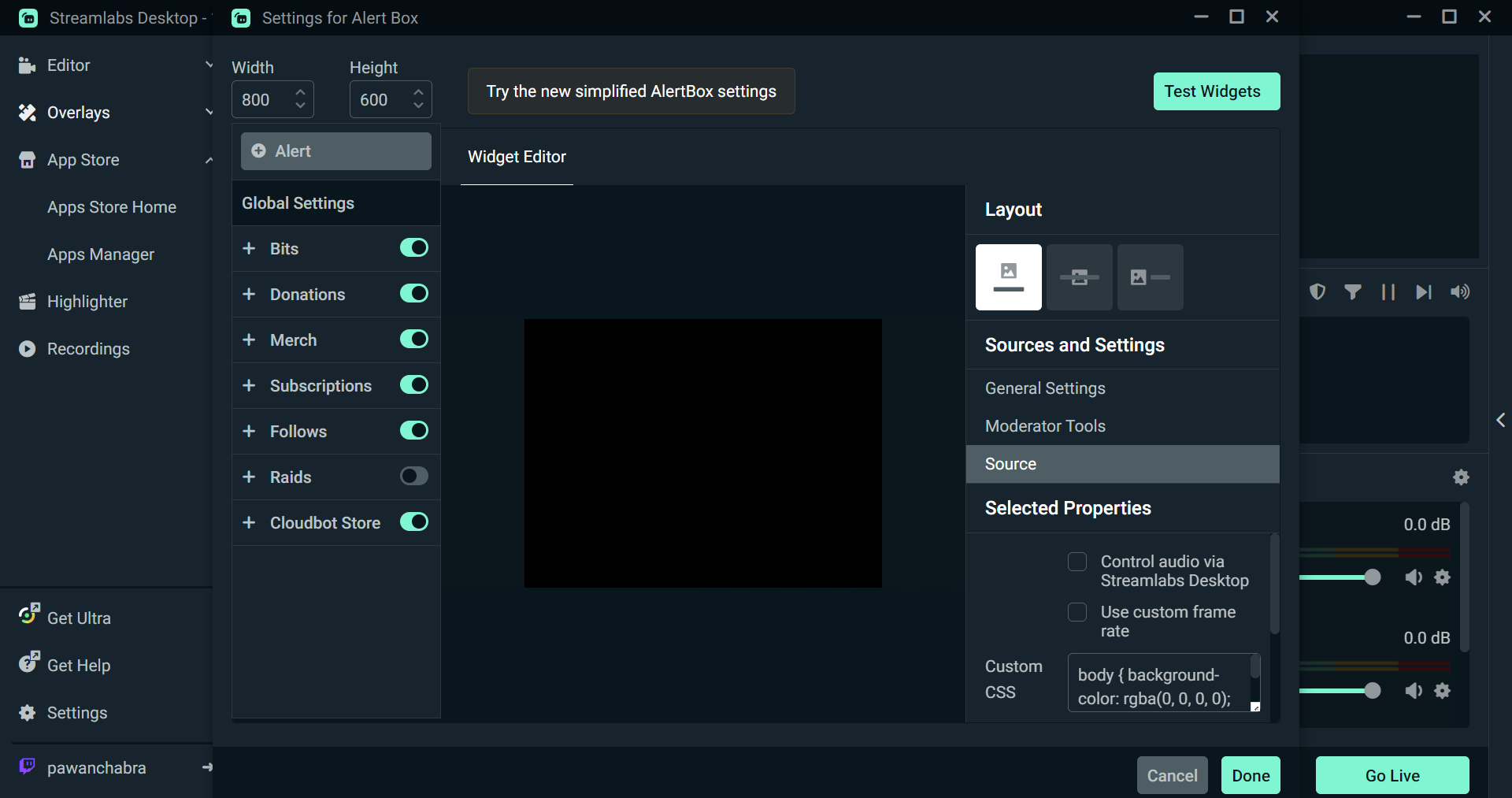
In Streamlabs, navigate to the "Alert Box" settings. Choose the type of alert (e.g., donations or cheers) where you want TTS to be active.
Step 4: Customize TTS Settings
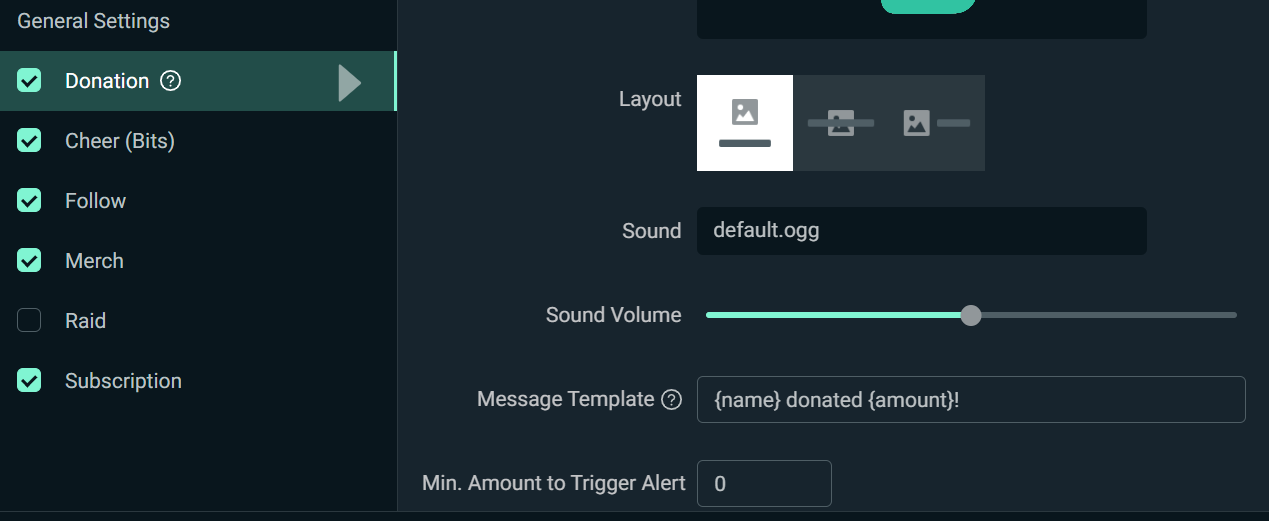
Enable the "Text-to-Speech" option for the selected alert. Adjust voice options, volume, and speech rate to match your stream's tone and audience preferences.
Step 5: Test the TTS Feature
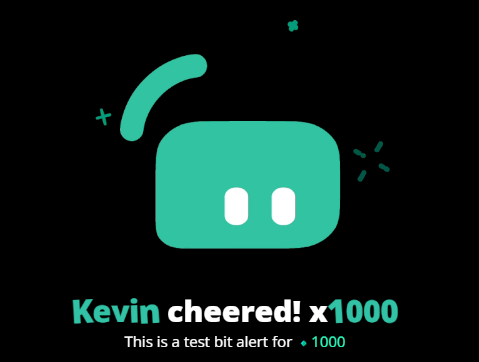
Before going live, test the TTS settings to ensure everything works as expected. Use the "Test Alert" feature in Streamlabs to preview the functionality.
Step 6: Go Live and Interact
Start your Twitch stream and enjoy the interactive experience. Acknowledge and respond to TTS messages to build stronger connections with your audience.
How to Add TTS to Twitch Using StreamElements?
StreamElements is one of the top platforms for live streaming on Twitch. Its features include overlays, tipping, chatbots, alerts, merchandise, and cloud-based stream integration.
Step 1: Access StreamElements and Log In
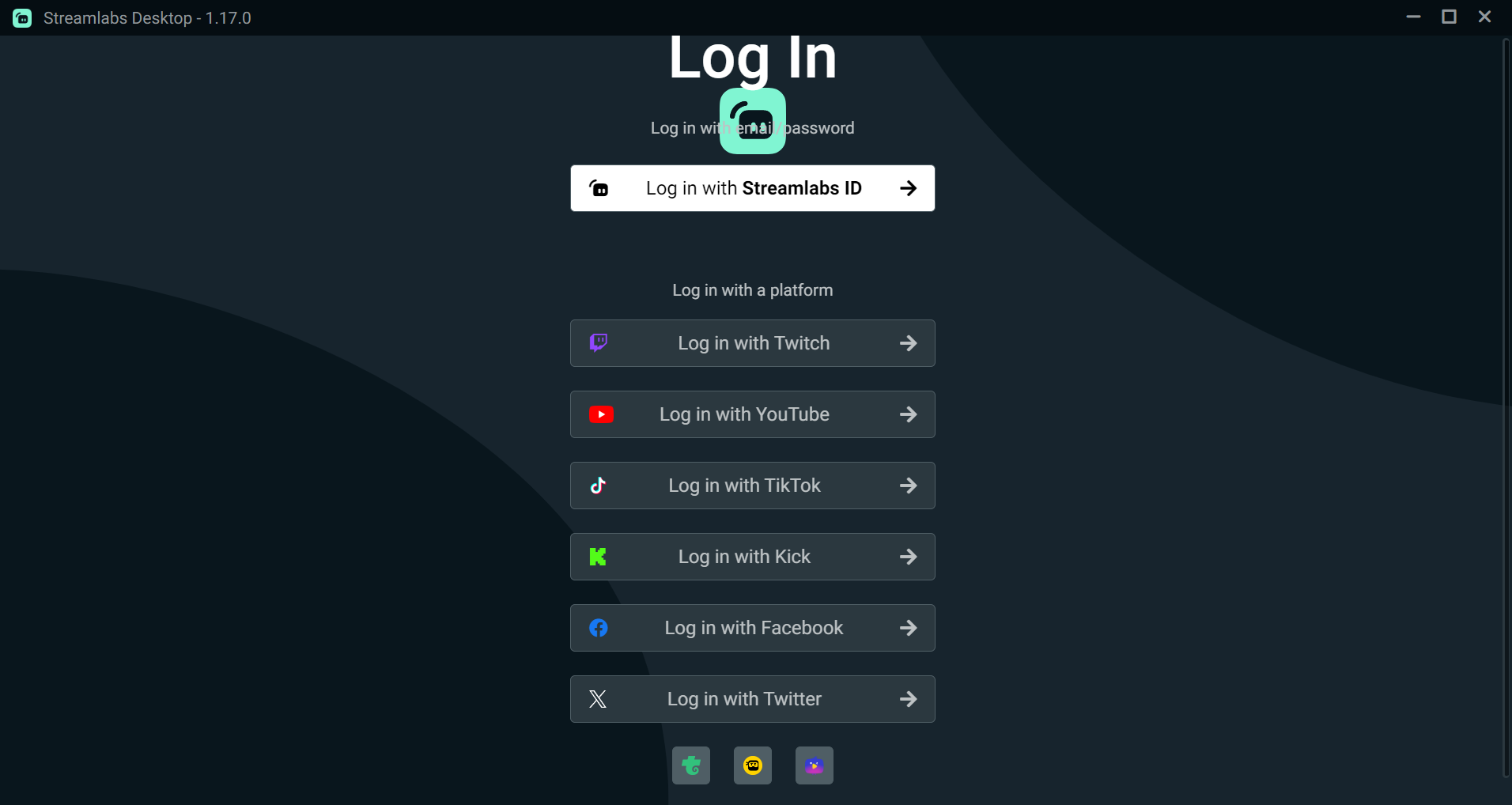
Go to StreamElements and log in to your account using your Twitch credentials to access the dashboard.
Step 2: Create a New Overlay
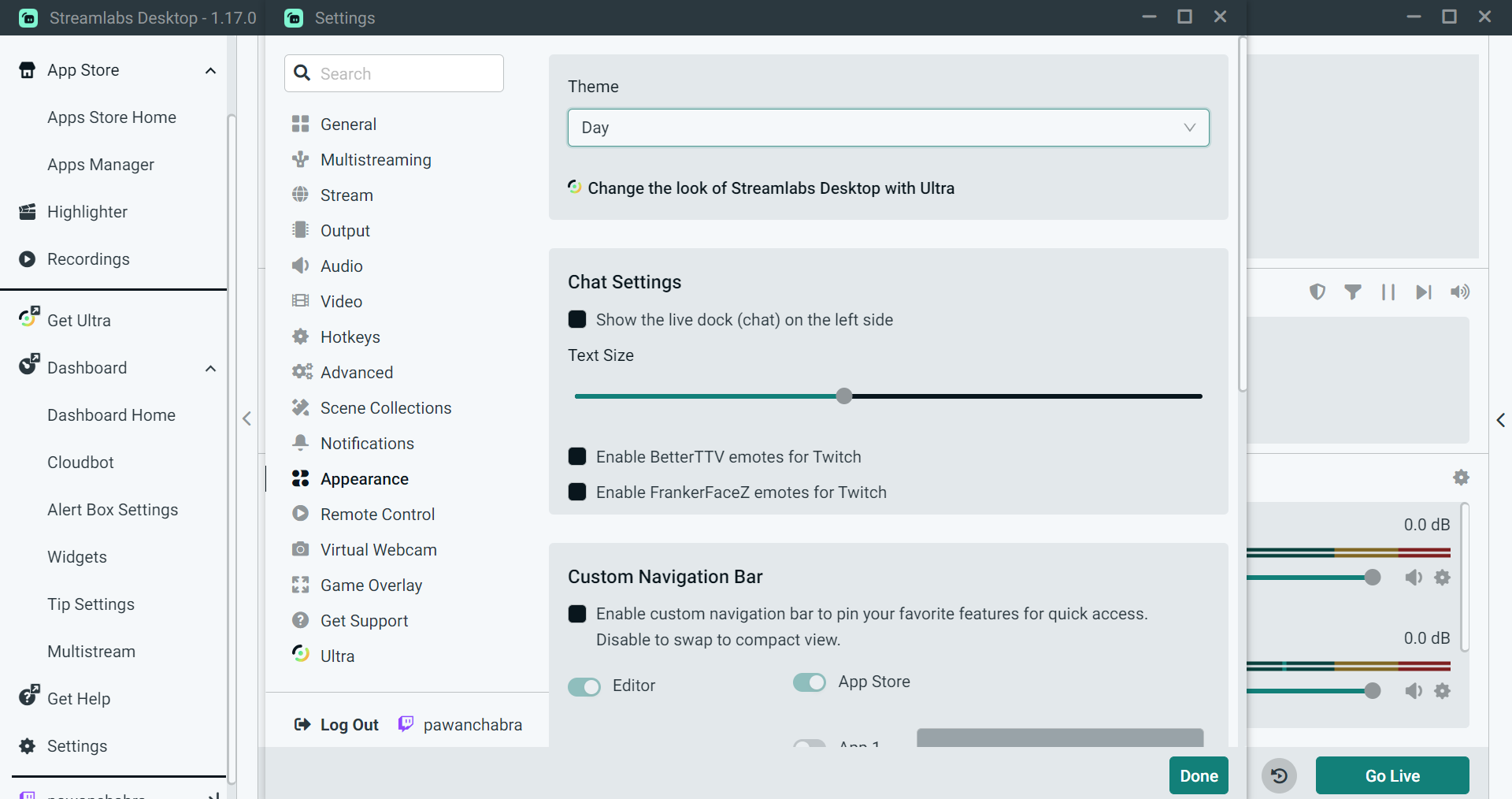
Navigate to the "My Overlays" section and click "Create New Overlay" to begin the setup process.
Step 3: Add an Alert Widget
In the overlay editor, click "Add Widget", select "Alerts", and then choose "AlertBox" to include an alert widget in your overlay.
Step 4: Select the Specific Alert for TTS
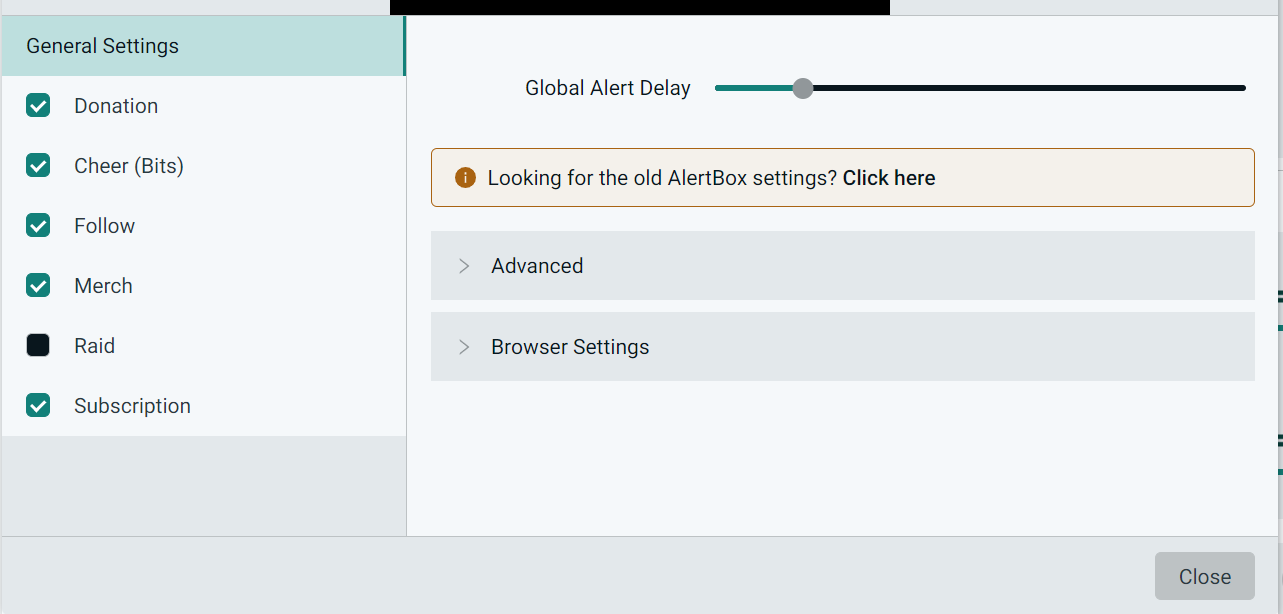
Pick the type of alert you want to enable TTS for — donations, subscriptions, or cheers.
Step 5: Customize the Alert Settings
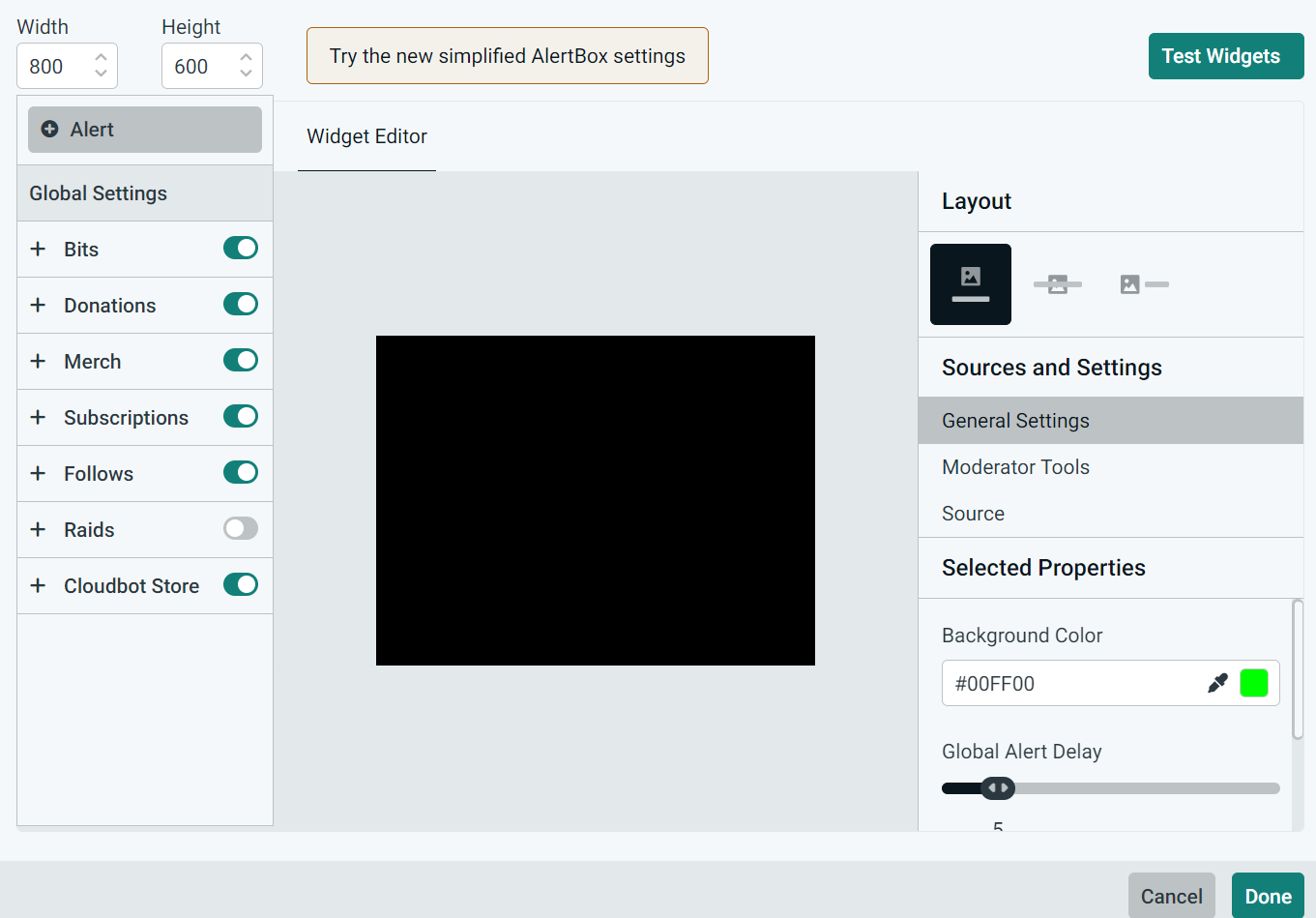
Click the Settings Wheel next to the selected alert to open customization options, allowing you to personalize the appearance and behavior of the alert.
Step 6: Enable TTS in the Settings
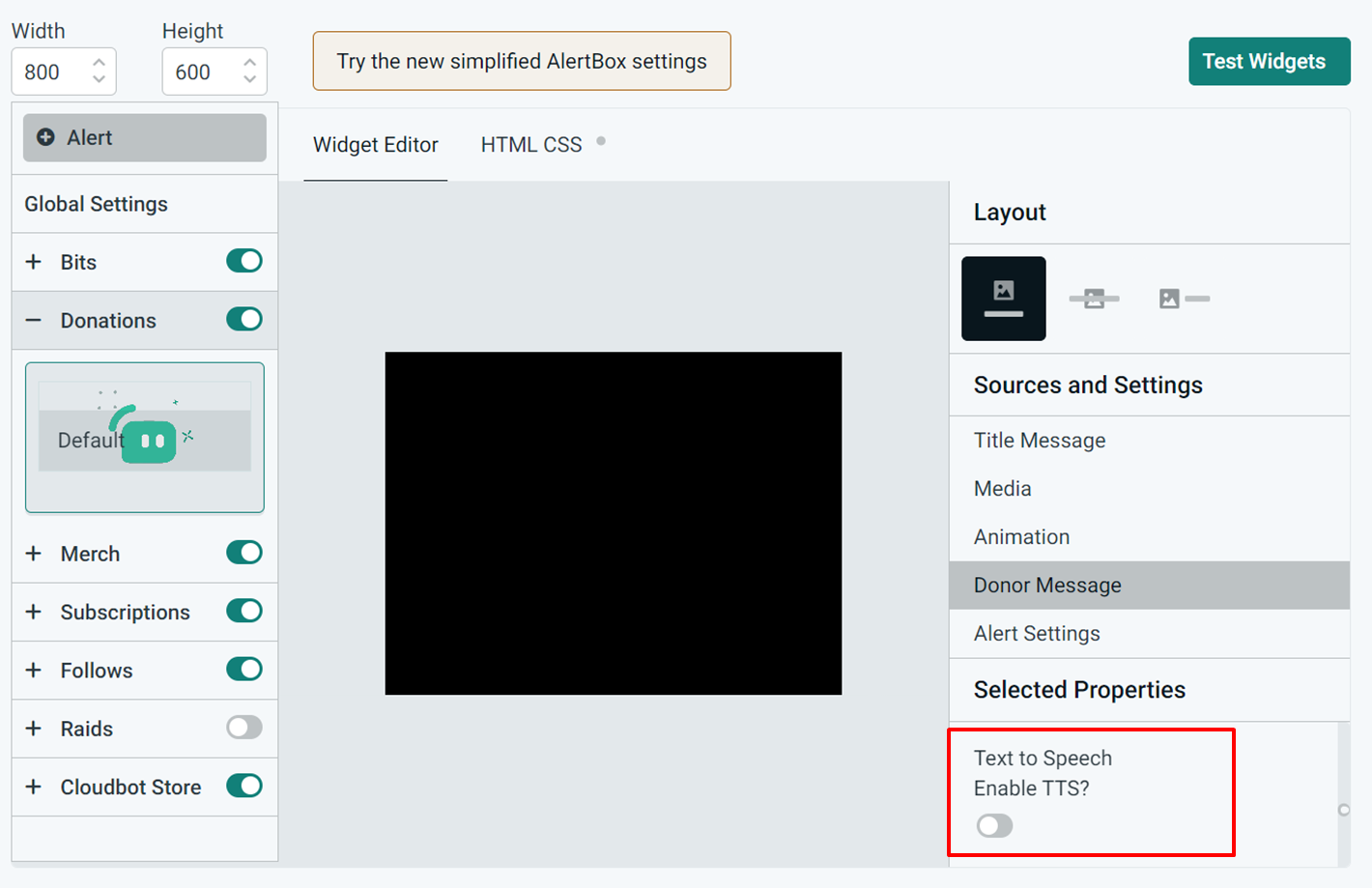
Scroll down to the TTS Settings section and toggle the option to enable Text-to-Speech. Adjust parameters like volume, voice type, and rate as needed.
Step 7: Save and Test Your Overlay
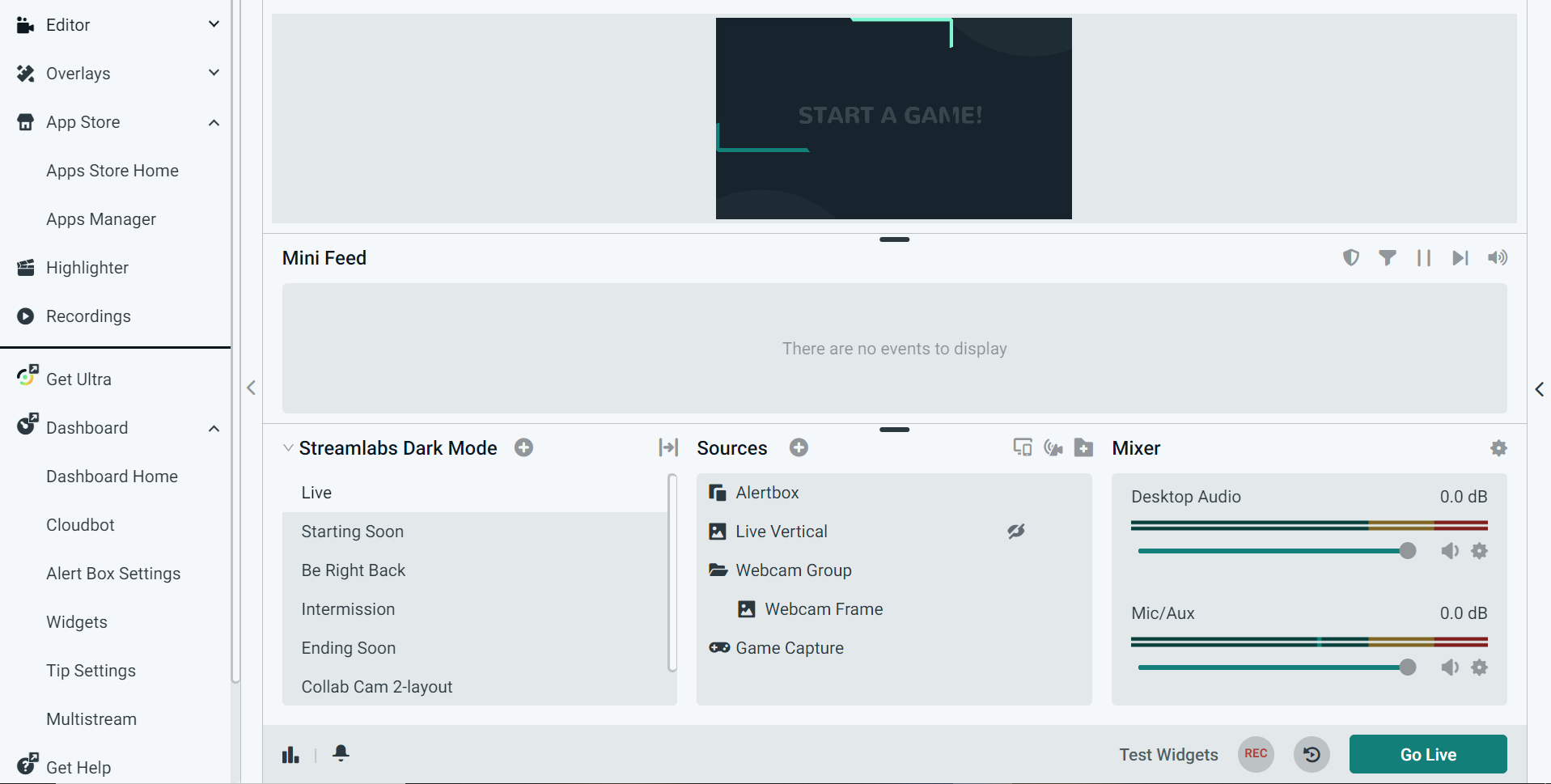
Save the overlay and use the preview or test alert feature to ensure TTS is functioning correctly.
How to Set Up TTS for Twitch Channel Points (2026)
Channel Points TTS has become one of the most popular engagement tools on Twitch in 2025 and 2026. Rather than limiting TTS to donations, streamers are now rewarding loyal viewers who redeem channel points with a spoken message — making every long-time viewer feel like a VIP.
Here's how to set it up via Sound Alerts, one of the leading tools for this in 2026:
- Go to soundalerts.com and log in with your Twitch account.
- Navigate to Text-to-Speech in the dashboard sidebar.
- Click Create TTS Reward and set a channel point cost (most streamers use 500–2,000 points).
- Choose a TTS voice from the library — Sound Alerts now includes AI-powered voices for more natural-sounding output.
- Set a character limit and enable a profanity filter to prevent abuse.
- Copy the browser source URL and add it as an overlay in OBS or Streamlabs.
- Test it using the built-in preview before going live.
Pro tip: Set a minimum point cost high enough that TTS feels like a reward, not something spammed every minute. Most streamers find 1,000–1,500 points to be the sweet spot for engagement without chaos.
Tips for Streamers Using Text to Speech on Twitch
Here are the key dos and don'ts for streamers using TTS on Twitch:
Do's:
Adjust TTS Settings: Pick a voice, speed, and volume that fit your stream. A small tweak can make a big difference.
Respond to Messages: If a message is read aloud, acknowledge it. Your audience wants to feel seen.
Moderate Appropriately: Use moderation tools to prevent offensive or spammy messages.
Use TTS selectively: Reserve TTS for donations, channel point rewards, or funny moments. Too much can get overwhelming.
Don'ts:
Ignore Messages: Letting spoken messages go unnoticed can feel dismissive.
Allow Inappropriate Content: Always filter language and spam.
Rely on TTS Alone: It's a supplement, not a replacement for real interaction.
TTS Applications Beyond Twitch
Beyond Twitch, TTS technology can enhance accessibility, streamline communication, and facilitate interaction across various platforms and industries.
Accessibility Tools
TTS plays a pivotal role in accessibility tools for individuals with visual impairments or learning disabilities. Screen readers utilize TTS to convert digital text into audio, enabling users to navigate websites, applications, and documents more effectively.
Navigation and Voice Assistants
Voice assistants and GPS systems rely on TTS to speak directions, respond to questions, and carry out commands.
Multimedia and Entertainment
In multimedia and entertainment, TTS enhances user engagement. Today, it is widely used in audiobooks, podcasts, and voiceover projects, allowing content to reach audiences in a new, audio-based format.
Customer Service and Automation
Businesses use TTS technology to automate customer service interactions. TTS-powered chatbots and interactive voice response systems provide instant responses to customer inquiries without requiring constant human intervention.
Language Learning and Pronunciation
TTS technology aids language learning and pronunciation by providing accurate audio representations of written text. Language learners can improve listening comprehension, practice pronunciation, and enhance fluency.
Murf's Natural-Sounding TTS for the Win!
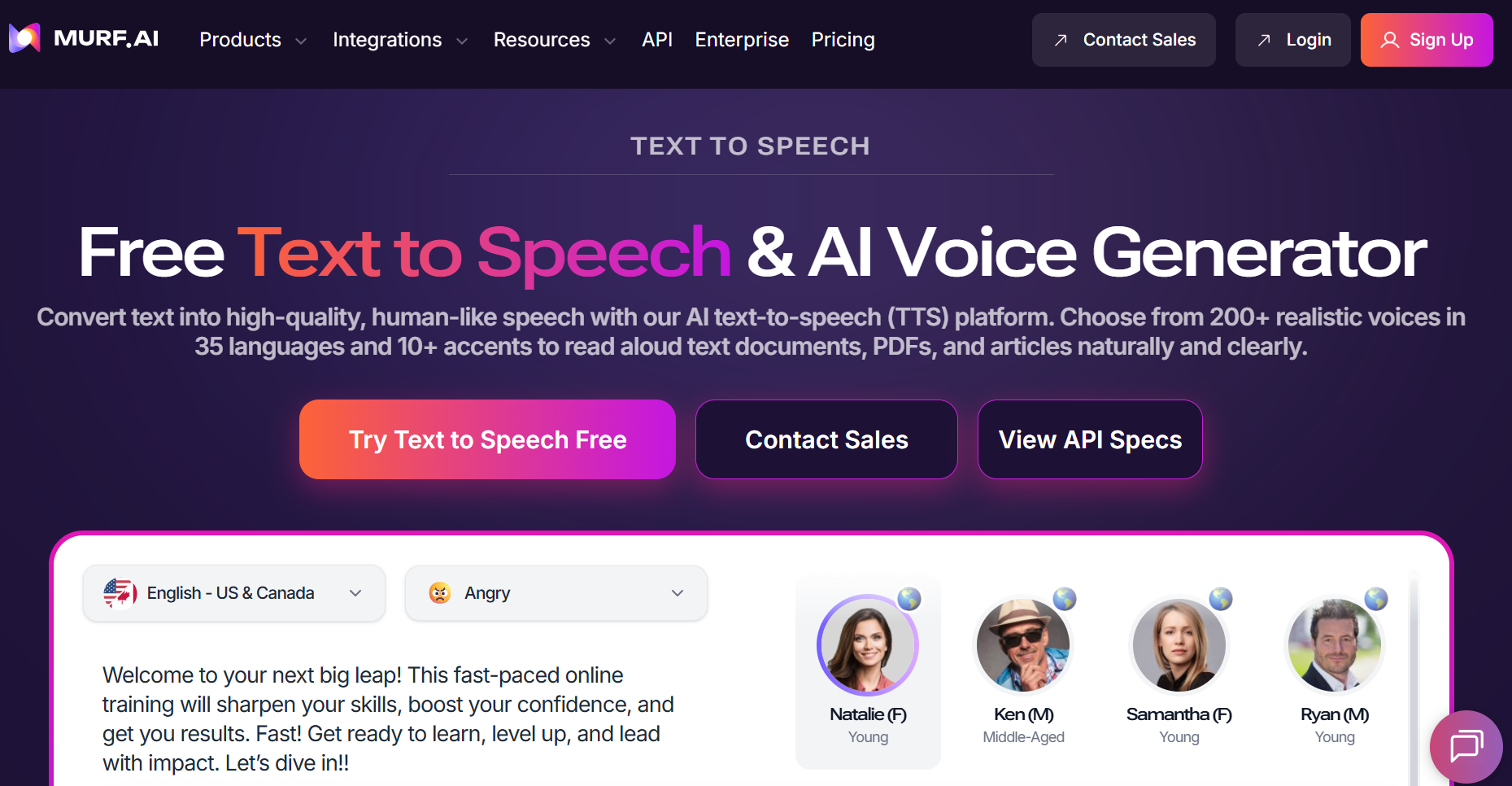
While Murf doesn't support Twitch TTS directly, we provide text to speech solutions for better digital accessibility to a wide base of users. Our natural-sounding voices cater to the voiceover needs of people across different industries. Murf provides over 200 realistic AI voices across 35 languages and 10+ accents, including Tamil text to speech.
With Murf, you get control over how your voiceovers sound. You can choose from different styles, like Narration, Newscast, Excited, or Calm, depending on what fits your content. The Variability feature is useful if you want multiple takes of the same line, so you can pick the one that feels most natural. For even more precision, Say It My Way lets you guide the AI's pitch, pacing, and intonation.
Murf's newest API, Falcon, takes things a step further. It's built for speed and scale, letting you create voice agents that respond quickly and sound natural. Key features include:
- 99.38% pronunciation accuracy, even with numbers, acronyms, and context
- End-to-end latency under 130ms, verified across multiple regions
- Simple pricing at 1¢ per minute
- Fluent voice support across 35+ languages
- Handles up to 10,000 simultaneous calls without affecting latency
Twitch TTS has become a simple but powerful way to make streams feel more alive. Whether it's for accessibility, a little humor, or building stronger community interaction, TTS gives streamers another tool to create a channel people want to keep coming back to. With the right setup and smart moderation, it works smoothly — and even opens new doors for monetization through channel points. If you're looking to level up engagement, TTS is one of the easiest features to start using today.
Frequently Asked Questions
How do I add TTS to my Twitch Channel Points?
.svg)
To add TTS to your Twitch Channel Points, utilize third-party tools like Streamlabs or Streamelements. Access the channel points settings in your dashboard, then integrate TTS features through the respective platform’s alert box - making it a great tool for a content creator.
How do I set up TTS on Streamlabs?
Setting up TTS on StreamLabs is simple. Log in to your Streamlabs account, navigate to the Alert Box section, and select the specific alert you wish to enable text to speech. Toggle the 'Text to Speech' option within the alert box settings to activate TTS functionality. Always remember to save settings.
How do I enable TTS on Twitch donations?
Enabling TTS on Twitch donations requires integration with donation management platforms like Streamlabs or Streamelements. Within the donation settings of these platforms, enable the ‘Text to Speech' feature to have more donations read aloud during your stream. You can set the minimum donation amount or adjust minimum donations amount as per your choice.
Can TTS voices be customized on Twitch?
Yes, TTS voices can be customized on Twitch through third-party applications or services. Some platforms offer a selection of voices with varying accents, pitches, and tones. Additionally, users can often adjust settings such as speech rate, profanity filter, and volume to further customize the TTS experience. Even add a filter to block out bad words
How can streamers set up TTS on their Twitch channels?
Streamers can set up TTS on their Twitch channels by accessing the alert settings of a widget called Streamlabs or Streamelements. Within the alert box settings, locate the Add Text to Speech option and enable it to have your message read aloud during streams.
Does TTS have applications beyond Twitch?
Absolutely, TTS has applications beyond Twitch. It’s widely used in accessibility tools, navigation systems, virtual assistants, and multimedia entertainment. You can attach TTS technology with seamless communication, accessibility, and user experience across various platforms and industries.
Can TTS contribute to the monetization of streams?
Yes, TTS can contribute to the monetization of streams. Streamers can offer TTS as a feature for subscribers, donators or as part of channel point rewards. Additionally, TTS can enhance viewer engagement and encourage donations, indirectly contributing to stream monetization efforts.