How to Turn Off Text-to-Speech: Minecraft Edition



Key Takeaways
- Minecraft includes a built-in Text-to-Speech system designed to improve accessibility by reading menus, chat messages, and system prompts aloud.
- While valuable for players who rely on audio cues, the Narrator can feel intrusive for users who prefer quiet gameplay or faster menu navigation.
- You can disable the Narrator in Java Edition through Accessibility Settings or by using the Ctrl + B shortcut for quick toggling.
- In Bedrock Edition, you can turn off Text-to-Speech through the Accessibility menu on PC, console, and mobile devices.
- Some platforms—like Xbox, PlayStation, Windows, and macOS—may keep narration active at the system level, so you may need to disable it in device settings as well.
Minecraft is a popular sandbox game that has clocked 193 million monthly active users (MAUs) in the first quarter of 2025. Diverse gamers across the world enjoy playing Minecraft from their computers or mobile devices, such as a Nintendo Switch, leading to its huge popularity.
To support accessibility, the game includes a text to speech or Narrator feature that reads menu items, chat messages, and system prompts aloud. This feature helps players who rely on audio cues navigate the interface with ease.
However, TTS can feel distracting once players no longer need it. The constant digital voices may slow down menu navigation or interrupt gameplay flow, especially in competitive matches.
In this article, let's look at how to turn off the Narrator in Minecraft across different devices.
What Is the Minecraft Narrator?
The Minecraft Narrator, a text to speech (TTS) system, reads out loud certain parts of the game's interface and in-game chat conversations. Originally implemented to make the game more accessible, the functionality now makes it easier for players with visual impairments to explore the game. Those who prefer auditory feedback will find the Narrator an invaluable tool due to its ability to read chat logs, system notifications, and menus.
In Minecraft Java Edition, you can customize the Narrator to read all messages, system notifications, or just commands. The Bedrock Edition, available on platforms like Windows 10, Xbox, PlayStation, and mobile devices, also features TTS to enhance accessibility for users.
But, for people who aren't familiar with it, the Minecraft text to speech feature can also be accidentally enabled, leading to confusion. Despite the Narrator's essential role in accessibility, its widespread use across genres and platforms can irk players who aren't necessarily in need of or interested in having it enabled.
How to Turn Off Narrator in Minecraft Java Edition
Disabling the Narrator in the Minecraft Java Edition is a straightforward process on PC.
Here's a step-by-step guide to help you disable this feature:
Step 1
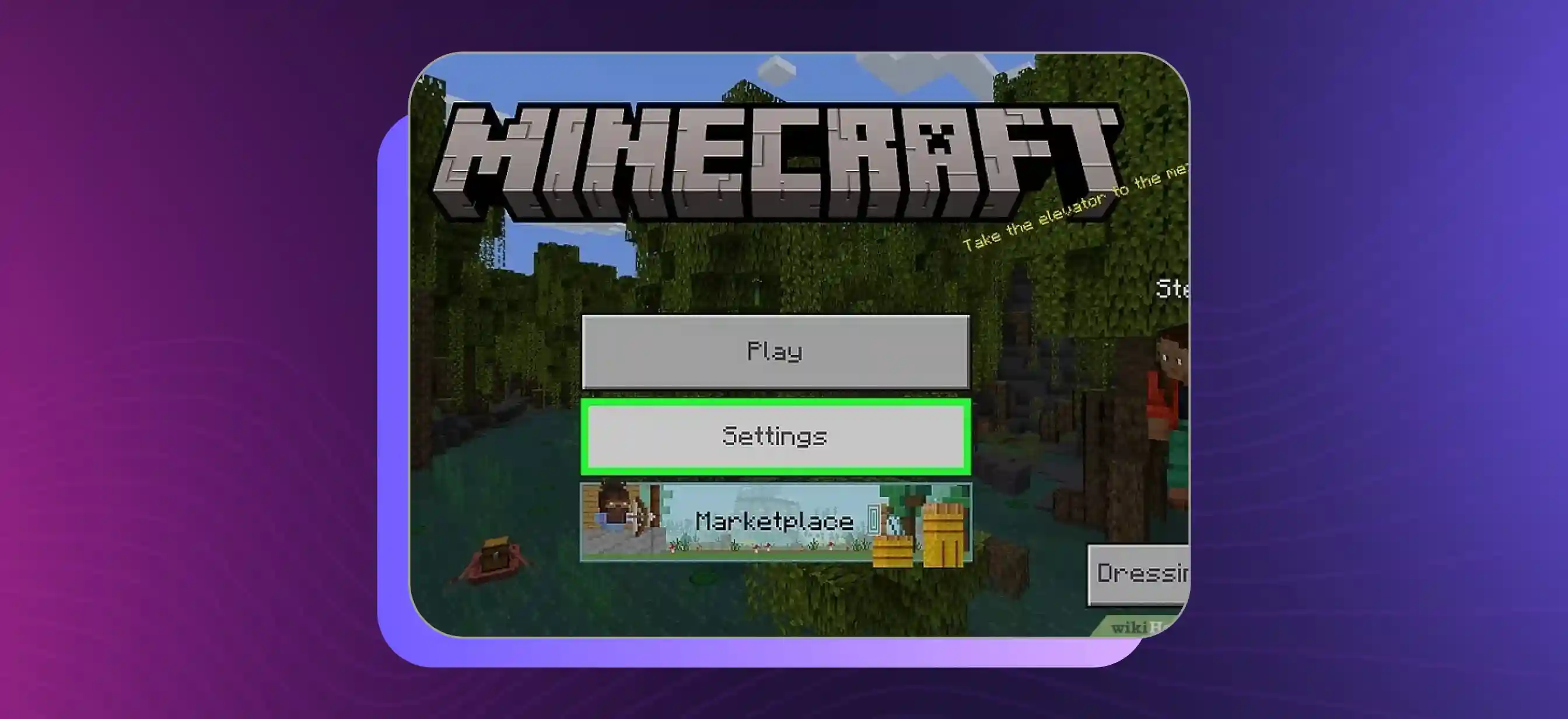
Launch Minecraft Java Edition and start the game as usual. From the main menu, select Settings to bring up a list of customizable game settings.
Step 2
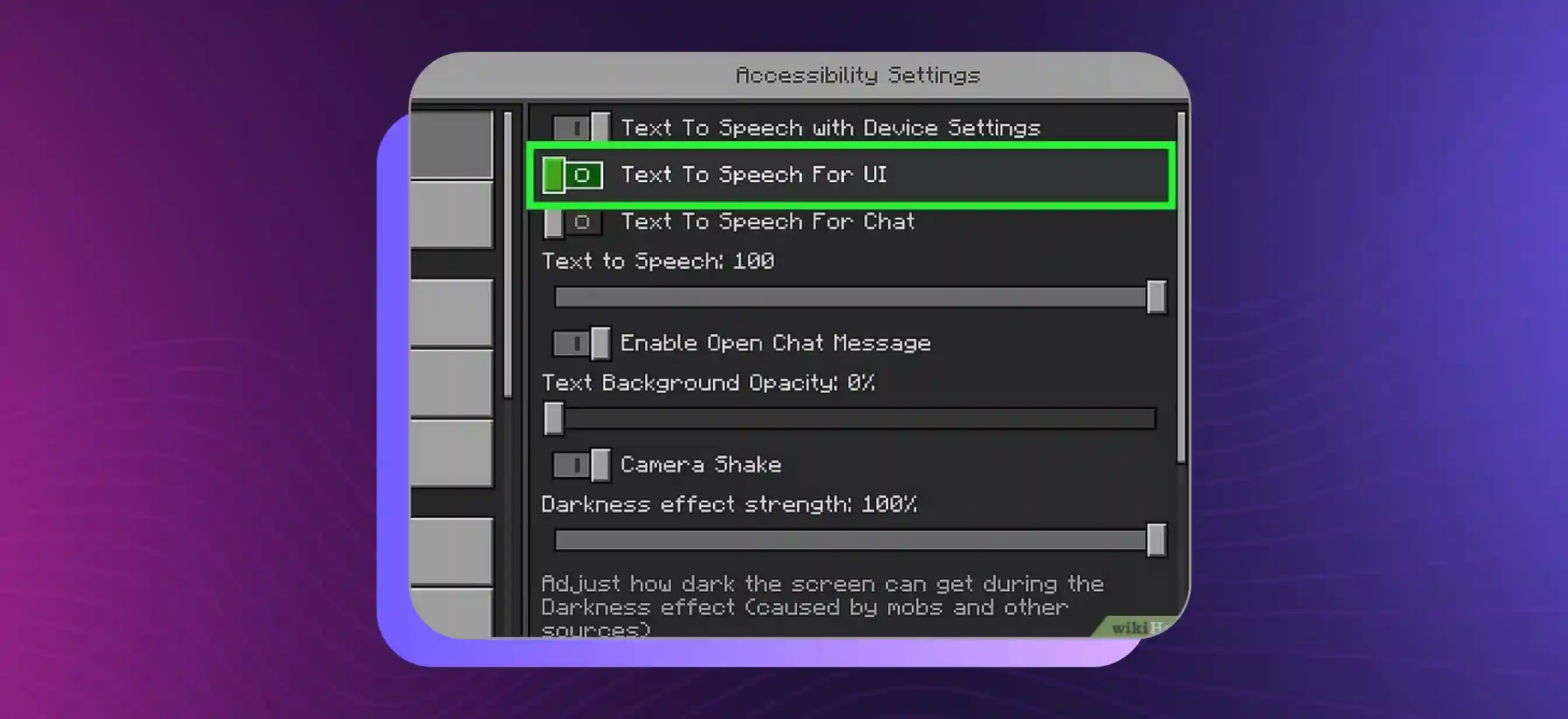
Navigate to Accessibility Settings, where you will find various options designed to improve gameplay for those with specific needs. Locate the Narrator toggle switch. Set the Narrator to Off to disable the feature completely.
Alternatively, you can press the keyboard shortcut Ctrl + B at any time to turn the Narrator on or off instantly — this works in both the menu and during active gameplay.
How to Turn Off Narrator in Minecraft Bedrock Edition
Disabling the Minecraft text-to-speech feature in the Bedrock Edition varies a bit, particularly on different consoles such as Xbox, PlayStation, and mobile devices. Here's a simple step-by-step guide to turn off the Narrator in the Bedrock Edition:
Step 1
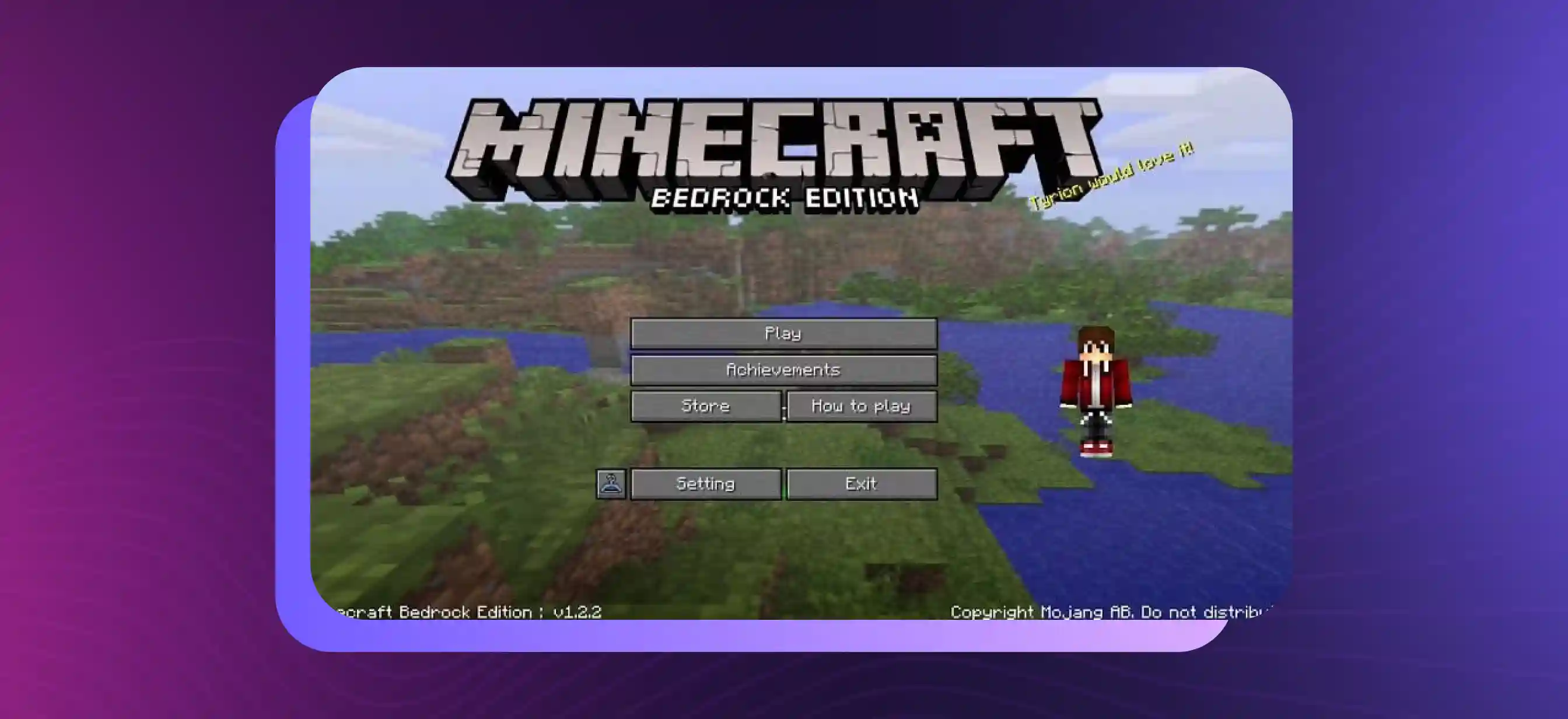
Open Minecraft Bedrock Edition on your preferred platform (Windows, Xbox, PlayStation, etc.)
Step 2
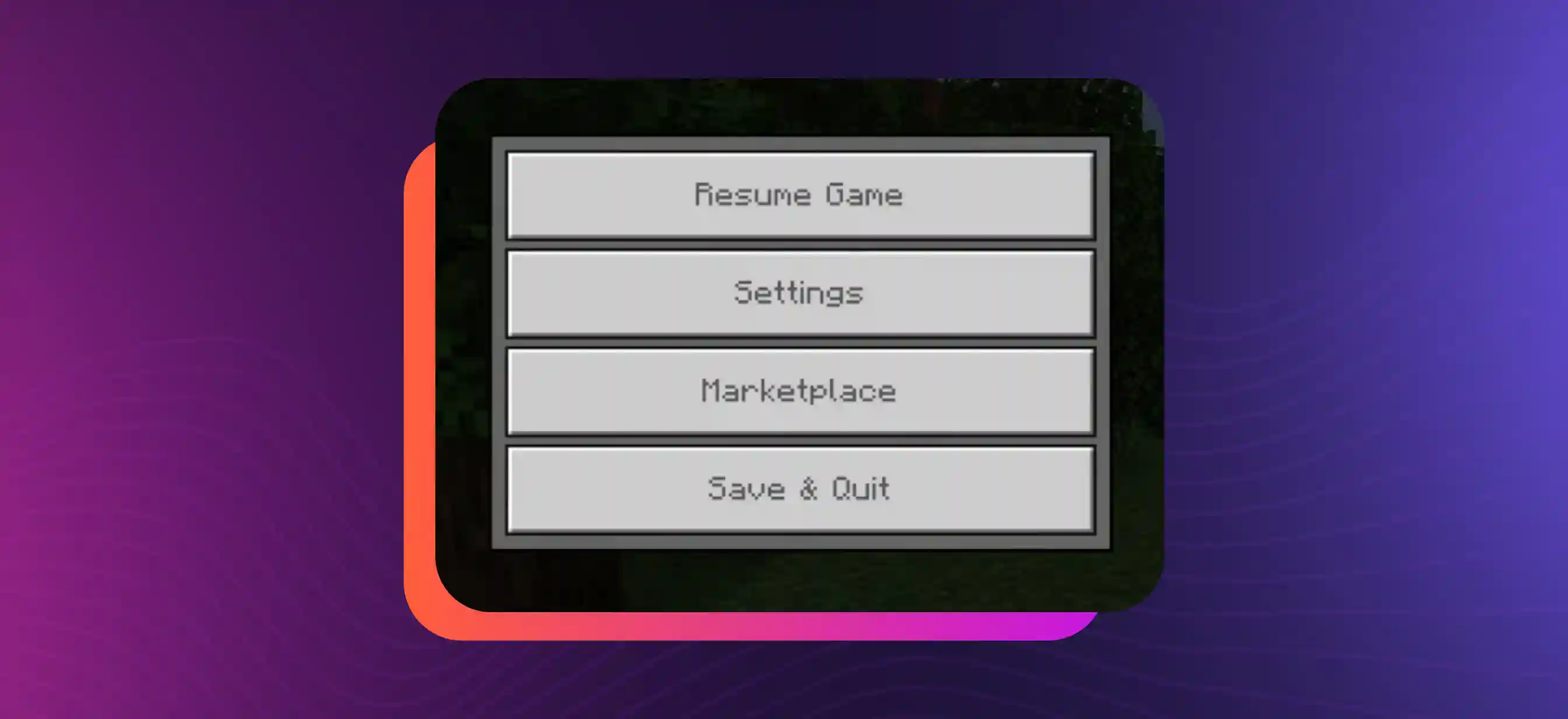
Head to the game's Settings Menu by selecting it from the home screen or pause menu during the game.
Step 3
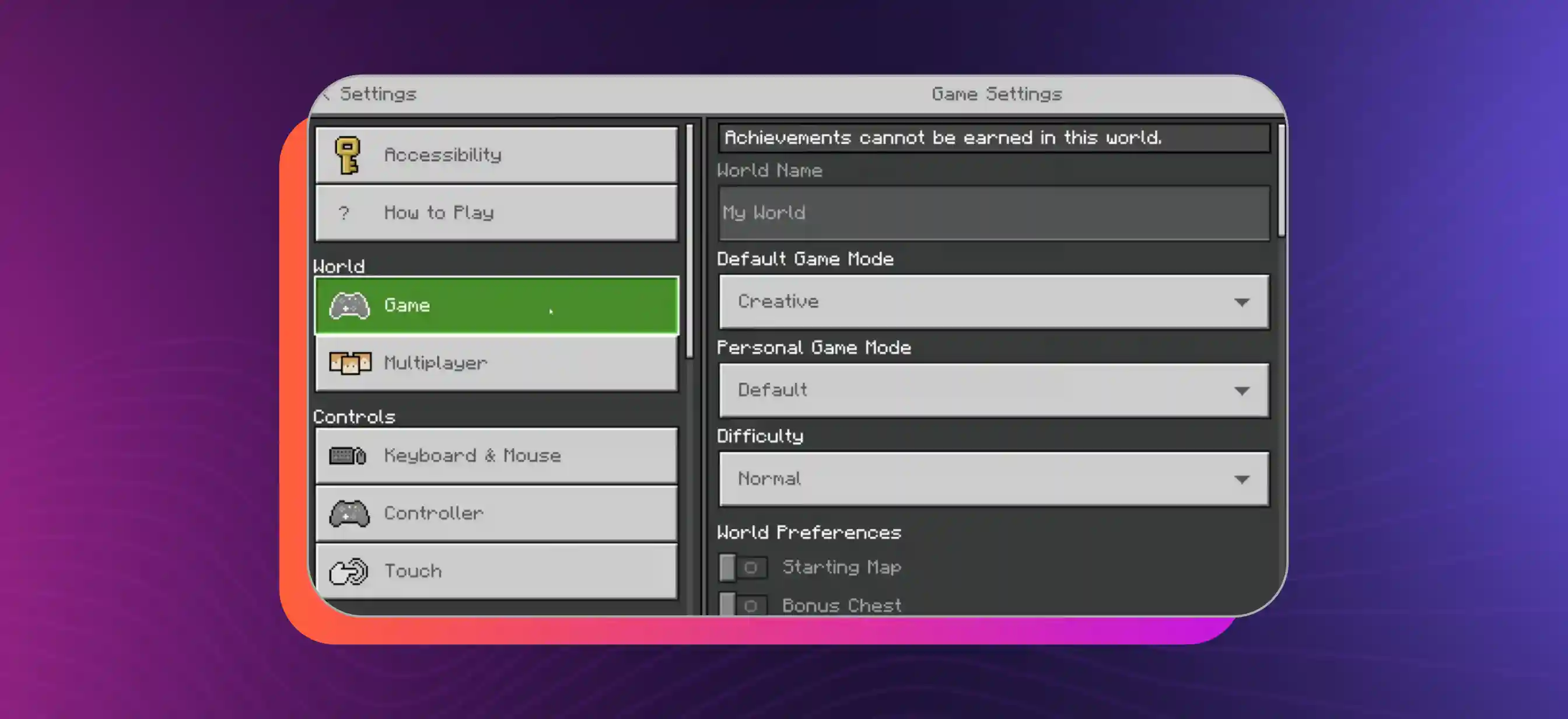
Scroll down to the Accessibility Settings section.
Step 4
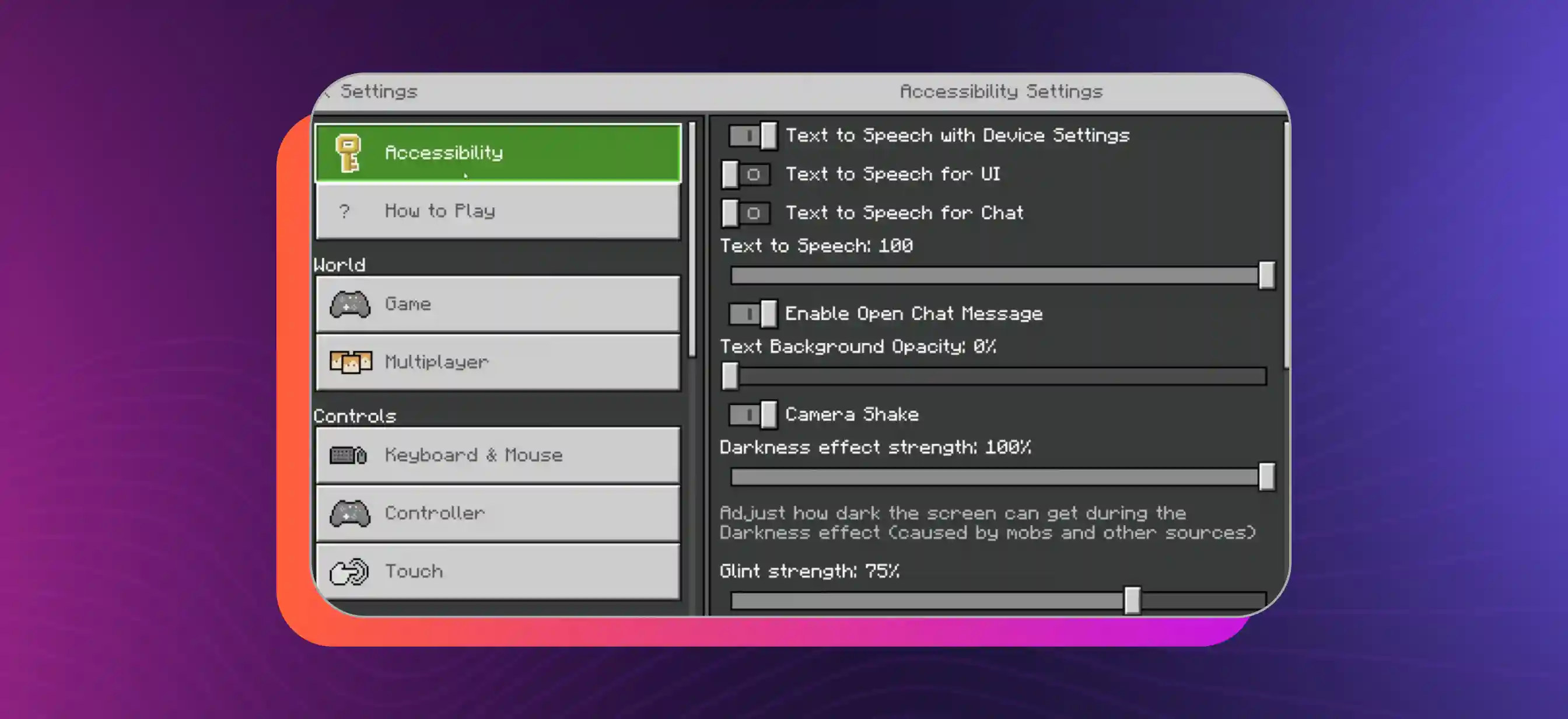
Locate the Text to Speech for UI option. Next, toggle the setting to Off to disable text to speech for all UI elements.
This method works across all Bedrock Edition platforms, allowing players on mobile, console, or PC to customize their gaming experience easily.
How to Turn Off Minecraft Narrator on Console & Mobile (2026)
With Minecraft 1.21 now live across all platforms, the narrator settings interface has been slightly reorganized on some devices. Here's the updated breakdown:
- Xbox Series X/S and Xbox One: Go to Settings → Ease of Access → Narrator. Toggle it off at the system level. If the Minecraft narrator persists, also check Settings → General → Accessibility inside the game.
- PlayStation 5 / PS4: Disable the system Voice Guide under Settings → Accessibility → Screen Reader. Minecraft inherits this setting, so turning it off system-wide also silences it in-game.
- Nintendo Switch: Navigate to System Settings → Accessibility and turn off Text-to-Speech. Then relaunch Minecraft and confirm the narrator is no longer reading menus.
- iOS and Android (Bedrock Mobile): Open Minecraft → Settings → Accessibility → toggle off Text to Speech for UI. On iOS, you may also need to disable VoiceOver under iPhone Settings → Accessibility.
- Windows 10/11: If the narrator continues after you've turned it off in-game, press Win + Ctrl + Enter to kill Windows Narrator, or go to Settings → Accessibility → Narrator and toggle it off.
Additional Tips for Turning Off Text to Speech
Although the methods mentioned address most platforms, some users might encounter extra hurdles when exploring the menus, especially on consoles like Xbox and PlayStation, which can feature different layouts. Check out these extra tips to make sure the Minecraft text-to-speech feature is turned off:
- To access the Narrator Settings on Xbox, you'll want to go through the system's Accessibility Options instead of looking for it directly in Minecraft. To turn it off, simply navigate to Settings, then select Ease of Access, and finally choose Narrator.
- For PlayStation, make sure to disable the System Voice setting on your console, as it could impact Minecraft's TTS feature.
- If the Narrator continues to be active after you've turned it off in Minecraft on Windows 10, take a moment to explore the Ease of Access Center in your system settings.
- If you're using macOS, consider turning off the system's built-in Voiceover tool, as it can occasionally interfere with Minecraft's accessibility settings.
To Wrap Up
Minecraft's Text-to-Speech system plays a crucial role in making the game more accessible for millions of players. It helps users navigate menus, read chat messages, and understand system prompts with ease. Still, many players prefer a quieter, distraction-free experience.
In Java, you can turn off the Narrator directly through Accessibility Settings or by using the quick Ctrl + B shortcut. In Bedrock, you can switch off TTS through the Accessibility menu, regardless of whether you play on PC, console, or mobile. And on consoles like Xbox, PS5, and Switch, the system-level accessibility settings take precedence — so always check both places if the narrator refuses to stop.
By understanding how both versions manage accessibility tools, players can customize their setup to match their preferences without losing access to features they may want later.
Frequently Asked Questions
What is the keyboard shortcut to turn Minecraft Narrator Off in Java Edition?
.svg)
In Minecraft Java Edition, you can quickly toggle the Narrator on and off by pressing Ctrl + B. This keyboard shortcut allows you to easily manage the Narrator's functionality without navigating through the menu.
Does the Narrator feature exist on all platforms of Minecraft?
No, the Narrator feature is not available in all versions of Minecraft. It is more common in Java Edition and Bedrock Edition across consoles and mobile.
How do I turn off the screen reader in Minecraft on Xbox?
On Xbox, you can go to Settings > Ease of Access > Narrator to turn off the Narrator for both the game and the system.
Can Text-to-Speech in Minecraft be Turned Off in the Bedrock Edition on mobile?
Yes, you can disable the text to speech feature for UI elements in Minecraft Bedrock Edition on mobile devices. To do this, open the game and go to the Settings menu. From there, select Accessibility Settings and find the option labeled Text to Speech for UI. Toggle this option to Off to disable the narrator, ensuring a smoother gaming experience without auditory distractions.