Revolutionize Your Gaming Experience with Xbox Text to Speech



Key Takeaways
- Xbox text to speech lets players hear chat and in-game text out loud, making it easier to keep up without staring at the screen.
- Party chat works seamlessly with TTS, so typed messages are read aloud in real time, keeping multiplayer communication smooth.
- Activating TTS is simple: go to Ease of Access, pick your voice and language, and toggle it on.
- Beyond accessibility, TTS can help content creators quickly produce voiceovers for tutorials, walkthroughs, and game reviews.
- Murf AI’s Falcon TTS API brings natural, professional voices in 35+ languages, perfect for creating polished audio for videos or podcasts.
- Together, Xbox TTS and Murf cover both sides of gaming, i.e., helping you play better and share your content in a professional way.
Gaming is a lot easier when you don’t have to stop and read every message that pops up. That’s basically what Xbox text to speech is for.
It takes the text from party chat or in-game messages and reads it out loud, so you can keep your eyes on the screen and stay in the flow. It helps if small on-screen text is hard to read, but it’s just as useful if you’d rather listen while you play.
Since it works across both party chat and game-and-chat transcription, it makes it easier for everyone to follow the conversation, no matter how they prefer to communicate.
In this article, you’ll learn what the feature does, how it helps during actual gameplay, and the simple steps to activate it in your Xbox settings.
How Does Text to Speech Work on Xbox
Text to speech on Xbox follows a pretty straightforward flow. When a new message shows up, the console picks it up, processes the text, and turns it into a voice that plays through your headset or speakers.
You choose the voice, speed, and language in the accessibility settings, and once the feature is turned on, Xbox handles everything in the background.
Since this feature often works with party chat messages, it helps to understand where party chat fits in. It is basically a private group where you and your friends can talk or send short text messages while playing. Even if everyone is in different games, the chat still stays active.
When someone types into party chat, that text becomes one of the inputs the Xbox uses for text to speech. The message appears, the console reads it, and the audio plays back almost immediately.
After that, the system goes right back to listening for the next message. Any new text that shows up in party chat or an in-game chat window goes through the same process. It’s all automatic once the feature is switched on.
Benefits of Xbox Text to Speech
The Xbox text to speech feature leverages state-of-the-art machine learning algorithms to convert written text into natural, human-like speech. The numerous benefits offered by the Xbox TTS feature include:
Improves Accessibility
Some players struggle with tiny text, busy screens, or menus that feel like a maze. Having the console read things out loud removes half the stress. It keeps people in the game instead of fighting the interface, and that alone makes the experience feel a lot more welcoming.
Brings Clarity in Party Chat Conversations
Party chat is always moving. People jump in and out, type quick updates, drop callouts, or send short notes when they can’t talk. Text to speech steps in and reads those messages so no one loses the thread halfway through a match. It keeps the whole group on the same page, even when the game is chaotic.
Removes Language Barriers
Online matches/contests pull in people from all around the world. Sometimes text is easier for them than talking, and sometimes hearing the text makes everything easier to follow. Text to Speech becomes a simple way for players from different places to understand what’s going on.
Aids Players with Learning Disabilities
Dyslexia, visual strain, or just plain screen fatigue can turn long in-game text into a chore. Hearing the console read things aloud makes the whole experience gentler and more manageable. It turns walls of text into something you can simply listen to.
Helps Busy Gamers Focus Better
Reading text mid-match is distracting, especially in shooters, racing games, or anything competitive. TTS solves that by reading out messages while you keep both hands on the controller. It also helps when you’re using a monitor far from your couch, or your room lighting isn’t ideal, or you simply don’t want to break focus to read.
Offers Voice and Language Control
Xbox doesn’t lock players into one synthetic voice. TTS in Xbox allows them to customize the voice and language options. Players can choose from various voices, accents, and languages to suit their preferences and needs.
This feature is especially beneficial for gamers who want to cater to a wider audience. By narrating their gaming plans or talking to followers in their native language, gamers can have enough control to make the console sound more natural and less robotic.
Improves Language Learning and Practising
Players can develop their pronunciation, vocabulary, and comprehension skills by listening to the TTS output in different languages.
Also, hearing certain terms aloud helps players who are learning a new language or getting used to game-specific vocabulary. It also helps younger players or new gamers understand instructions more clearly.
Additionally, the feature can be used to read out educational materials, such as textbooks or language learning resources, providing a more engaging and interactive learning experience.
Enhances Immersion and Realism in Games
The TTS Xbox feature can also enhance game immersion and realism by providing realistic and dynamic voiceovers for characters, NPCs (non-player characters) access settings, and in-game events.
This can create a more engaging and immersive gaming experience as players feel more connected to the game world and its inhabitants.
Additionally, it can be used to add depth and nuance to in-game narratives and party chat transcription, making the storytelling experience more compelling and memorable.
Steps to Enable TTS on Xbox
Enabling the text to speech feature on the Xbox console is a straightforward process. Here's a detailed guide to help you activate this useful feature:
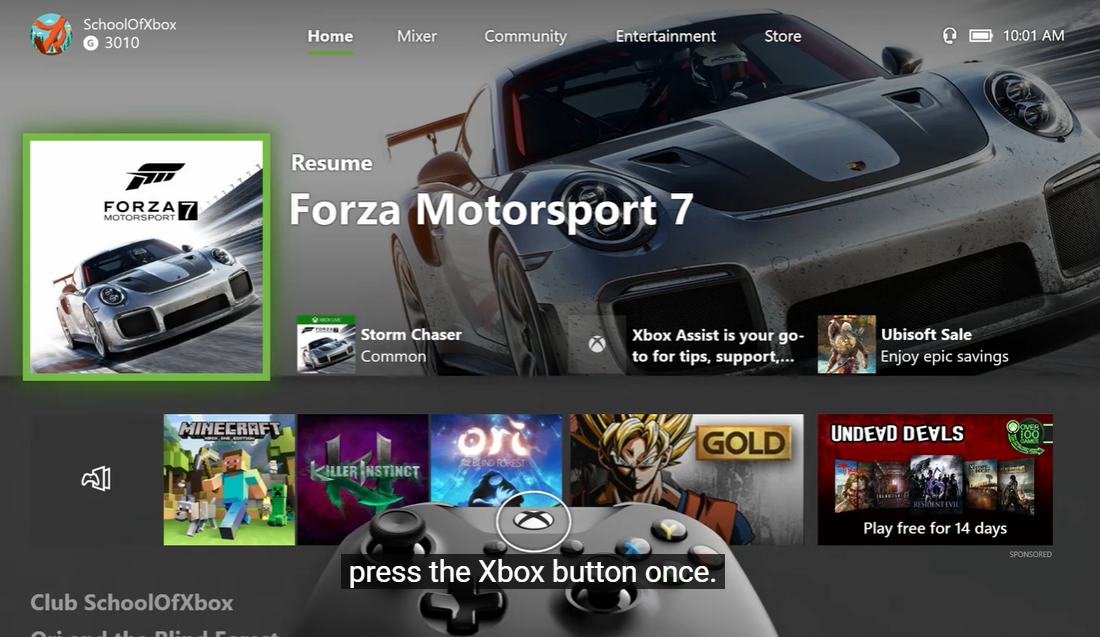
Step 1: Open the Guide. Press the Xbox button on your controller. The guide pops up over whatever you’re doing.
Step 2: Head into Settings. Move to the Profile & System tab and select Settings.
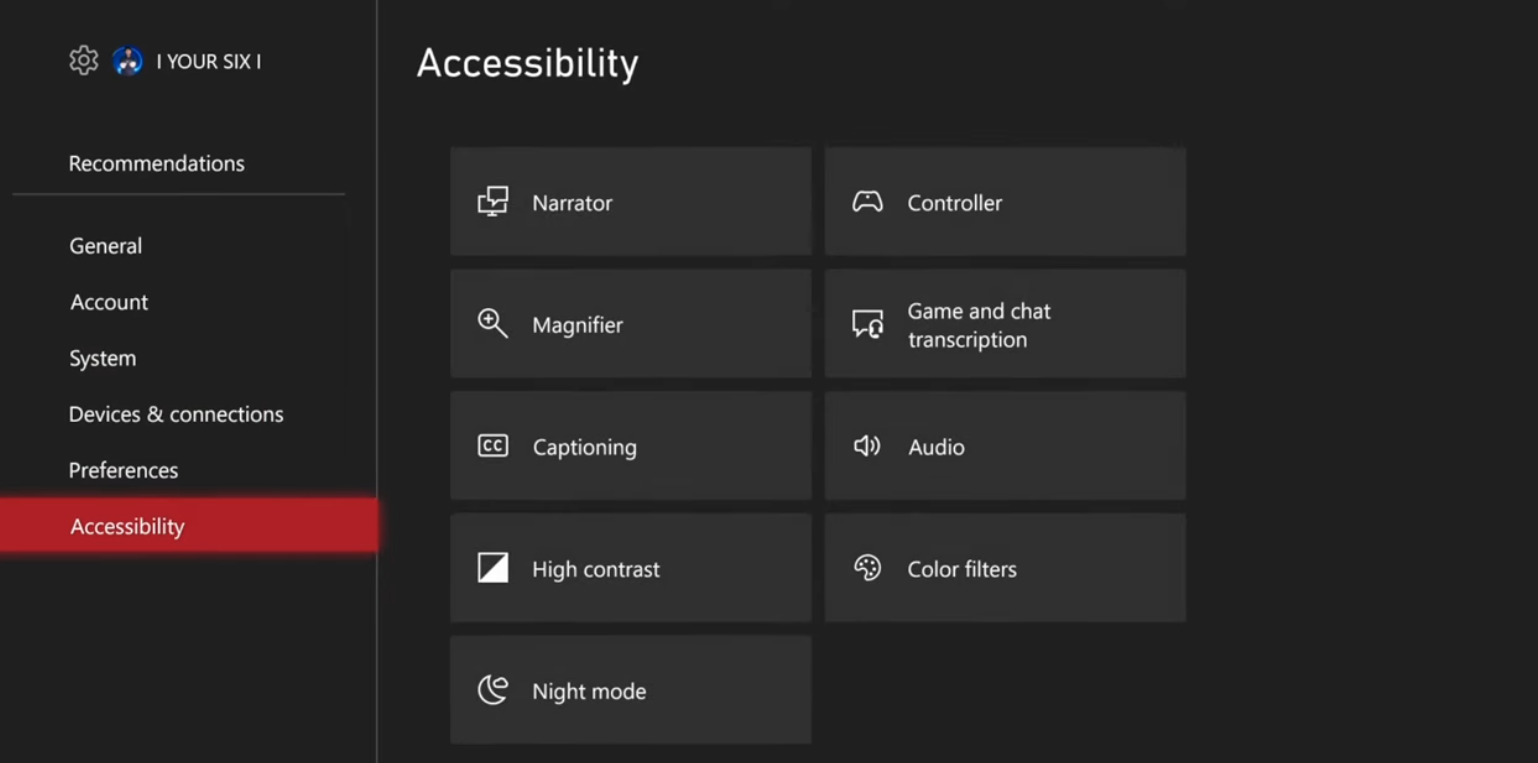
Step 3: Go to Accessibility. Inside Settings, scroll to Accessibility. This is where Xbox keeps all its accessibility features.
Step 4: Open Game and Chat Transcription. Select Game and chat transcription. This is the section that manages both text to speech and speech to text.
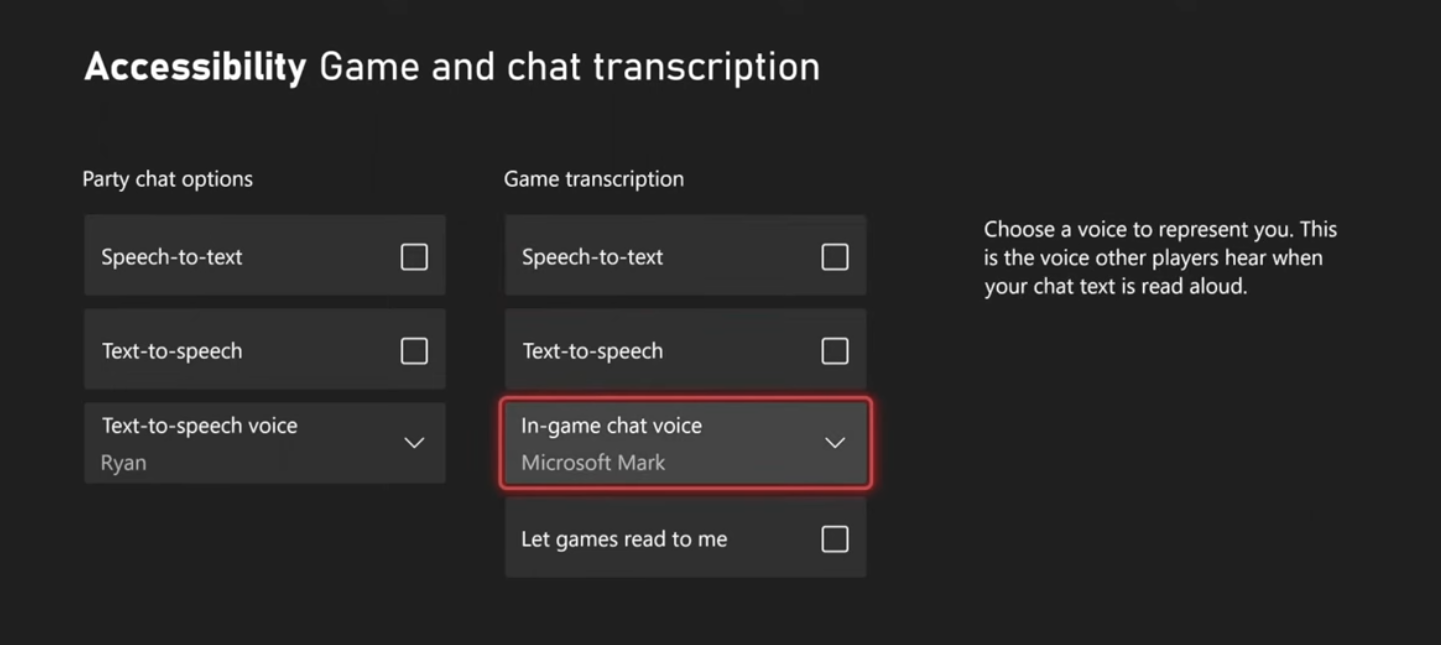
Step 5: Turn on Text to Speech. Right below the voice menu, click the Text to Speech. That’s the main activation step.
Step 6: Pick your TTS voice. You’ll see a voice dropdown. Open it, browse the options, and choose the voice that sounds best to you.
Step 7: Back out and you’re done. Press B to exit. The console saves everything automatically, so there’s nothing more you need to confirm.
How Can TTS Improve the Xbox Experience?
Text to speech on Xbox helps players communicate and navigate more easily when playing their favorite games. It reads chat aloud, converts typed messages into voice, and generally removes the friction that comes with fast-paced gaming. It’s great for accessibility and for anyone who wants a smoother, more comfortable experience during gameplay or party chat.
But when it comes to creating content around gaming, Xbox’s built-in TTS is limited. That’s where tools like Murf step in. Murf isn’t built into the console and doesn’t generate real-time TTS for Xbox, but it does give creators something the console can’t: polished, professional-sounding voiceovers they can use outside the game.
Creators often use Murf to record tutorial narration, explain game mechanics, walk through levels, or add clean audio to reviews and commentary. Since Murf exports everything as audio files, those voiceovers can be dropped into YouTube videos, trailers, podcasts, or any other format. It makes the production side of gaming content faster, more consistent, and frankly a lot more impressive.
What Murf AI Brings to the Table

Murf is your strongest ally when you want more than what a console’s built‑in TTS can offer, like pro‑level narration, tutorials, or content production. Instead of reading chat in real-time (like on a console), Murf lets creators export polished voiceovers as audio files.
With this flexibility, you can build walkthrough videos, level‑by‑level guides, lore recaps, narrative content, or even podcasts related to games, all with smooth, natural-sounding voices.
Falcon is Murf’s latest TTS engine and it brings a serious upgrade for anyone building voice‑enabled projects. It’s built for speed, quality, scale, and flexibility. Here’s what sets it apart:
- 55 milliseconds model latency
- Time‑to‑first‑audio around 130 milliseconds
- 35+ languages and 200+ voices
- 99.38% pronunciation accuracy
- Up to 10,000 concurrent calls
- Costs 1cent/minute
- Integration with REST APIs, Python, JavaScript, cURL
Beyond Xbox, Murf Falcon makes sense for:
- Gamers or content creators making long gameplay walkthroughs, tutorials, guides, or reviews
- Multilingual content or international audiences, even if you want to target gamers from different countries.
- Narrative‑heavy content like lore explanations, story breakdowns, or lore podcasts
- Scalable projects with its ability to handle multiple calls at once
Final Thoughts
Xbox’s text to speech quietly makes gaming easier. It reads party chat and in-game messages out loud, so you don’t have to keep looking at tiny text or miss anything during intense matches. It keeps multiplayer communication smooth and makes the whole experience more accessible for players who struggle with reading on-screen text.
Murf AI takes this a step further for creators. While Xbox handles in-game accessibility, Murf’s Falcon TTS API lets you create professional, natural-sounding voiceovers for walkthroughs, tutorials, reviews, or podcasts. It’s fast, expressive, and works in multiple languages, making content creation easier and more polished.
Together, Xbox TTS and Murf cover both sides of the game. One helps you play better, the other helps you share, explain, and bring your gaming content to life for others.

Frequently Asked Questions
How do you make synthetic voice on your Xbox talk?
.svg)
By turning on the TTS feature on your Xbox, your Xbox will automatically read aloud text messages and in-game voice chat. You can adjust the voice chat amount and enable text to speech settings according to your preferences by following the steps outlined in the previous answer.
Why does my Xbox have TTS?
Xbox includes accessibility features, such as the TTS feature, to aid players in their games and improve the accessibility options, making gaming more inclusive, especially for those with visual impairments or reading difficulties. Additionally, it enhances communication between players during gameplay and helps content creators create more engaging and immersive content for their audiences.
How do I enable text to speech for Xbox party chat?
To use text to speech for Xbox party chat, open the Ease of Access settings on your console. Go to Game and Chat transcription, choose your preferred voice and language, then toggle TTS on. Once enabled, messages in your Xbox party or in-game chat will be read aloud, making it easier to follow conversations without looking at the screen.
Can Xbox TTS read in-game text and game transcription?
Yes. Xbox text to speech supports reading both chat messages and in-game text like mission prompts, menu options, or notifications. By enabling Game and Chat transcription, the console can convert text into audio in real time, helping players keep track of objectives, instructions, or other players’ messages without breaking focus.
Does Xbox TTS work with multiple languages and accessibility options?
Absolutely. Xbox TTS lets you select different voices and languages in the accessibility settings. It supports reading aloud text in games, party chat, and system menus, aiding players with visual impairments, reading difficulties, or anyone who wants a hands-free gaming experience. The feature integrates with Xbox Family Settings, allowing controlled access and customization across accounts.