How to Translate a Video: Make Your Content Global in Minutes



If you’ve ever tried to translate a video from English to French, Spanish, Japanese, Chinese, Arabic, or any other language (and vice versa), you probably know the struggle.
You finish editing, you’re proud of the result, and then reality hits. You need subtitles and narration. Or versions in other languages because your viewers aren’t all from one place. Doing all of this manually used to take ages. Fortunately, we live in times when an AI video translator can do the heavy lifting for you.
Creators today operate in global markets with bigger, diverse audiences and shorter timelines. Someone uploads an original video, and five minutes later, people want to watch it in another target language. Whether you’re posting a training video, sharing a project, growing on YouTube, or talking to global audiences, tools that offer video translation make it easier to break down language barriers.
You can upload your video content, let the tech work, and spend your time on ideas instead of menus and downloads. It’s faster, easier, and closer to how people actually work.
How to Translate a Video in Different Languages
Translating videos and localizing them for native audiences has become a breeze, thanks to advanced AI. Here are a few AI video translation tools to consider when you want an impactful output that actually makes sense.
1. Murf AI
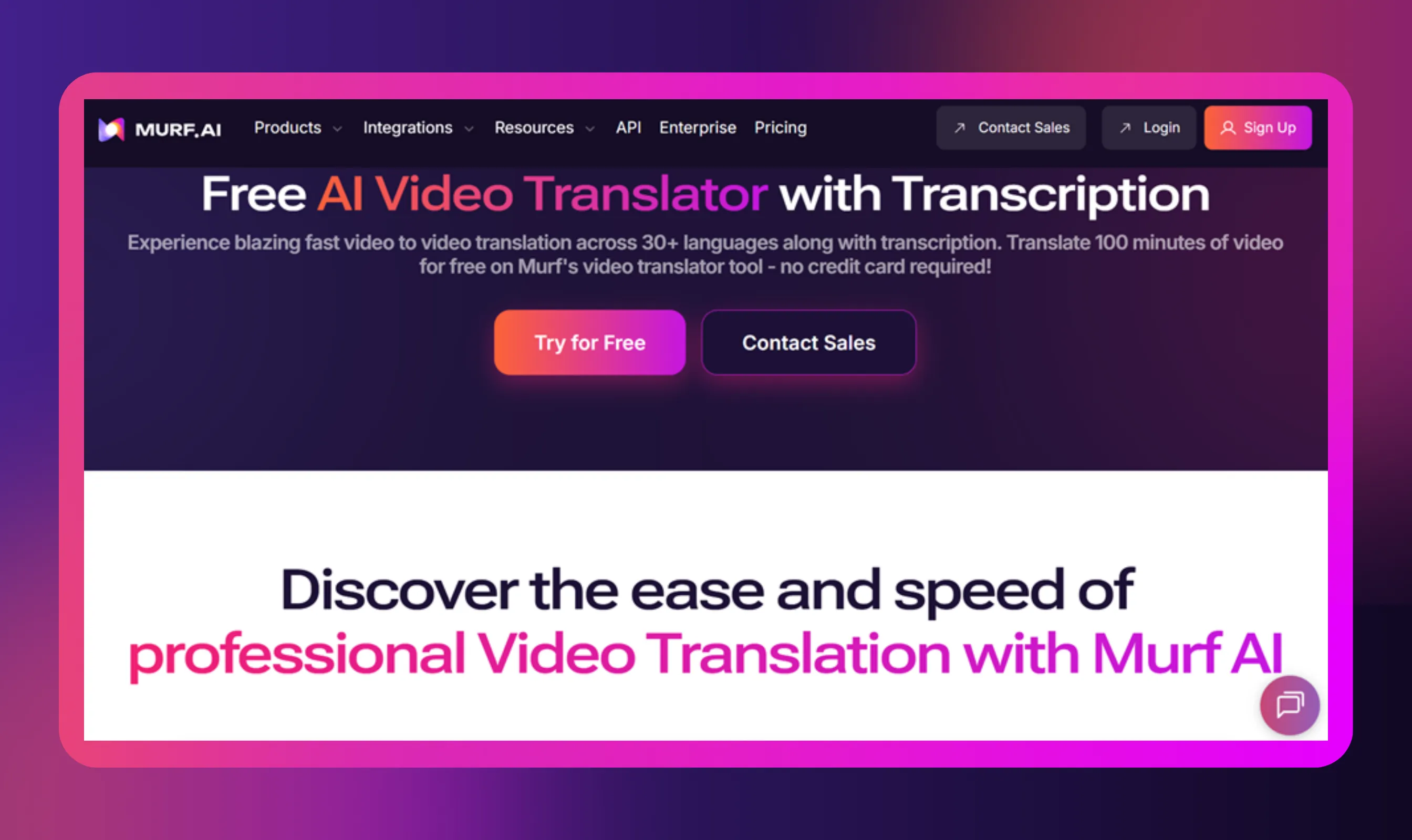
If you want a simple way to translate a video and reach global audiences without juggling ten different tools, Murf is one of the easiest places to start. It handles transcription, video translation, AI dubbing, and downloads in one workspace, which saves time and keeps your workflow focused.
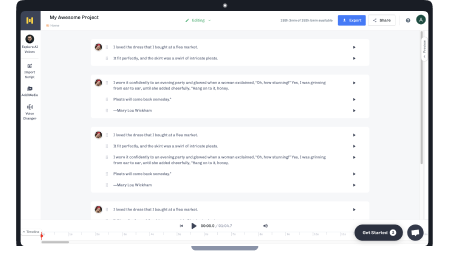
Creators can translate their videos into multiple languages using Murf's Video Translator, making global content creation faster and easier than ever. With Murf’s advance translation and AI dubbing, users can reach international audiences, boost engagement, and grow their brand worldwide in just minutes.
Here’s a step-by-step of how Murf does it:
Step 1: Upload Your Video File
On Murf’s platform, you upload your video file in different formats. Murf supports .mp4, .mov, .avi, .mkv, even audio files like .mp3 or .wav.

Step 2: Select Source & Target Language
Once uploaded, you tell Murf what the original language is and pick the target language(s). Murf Dubbing AI supports over 40 languages to enable AI-powered video translation in a range of languages.
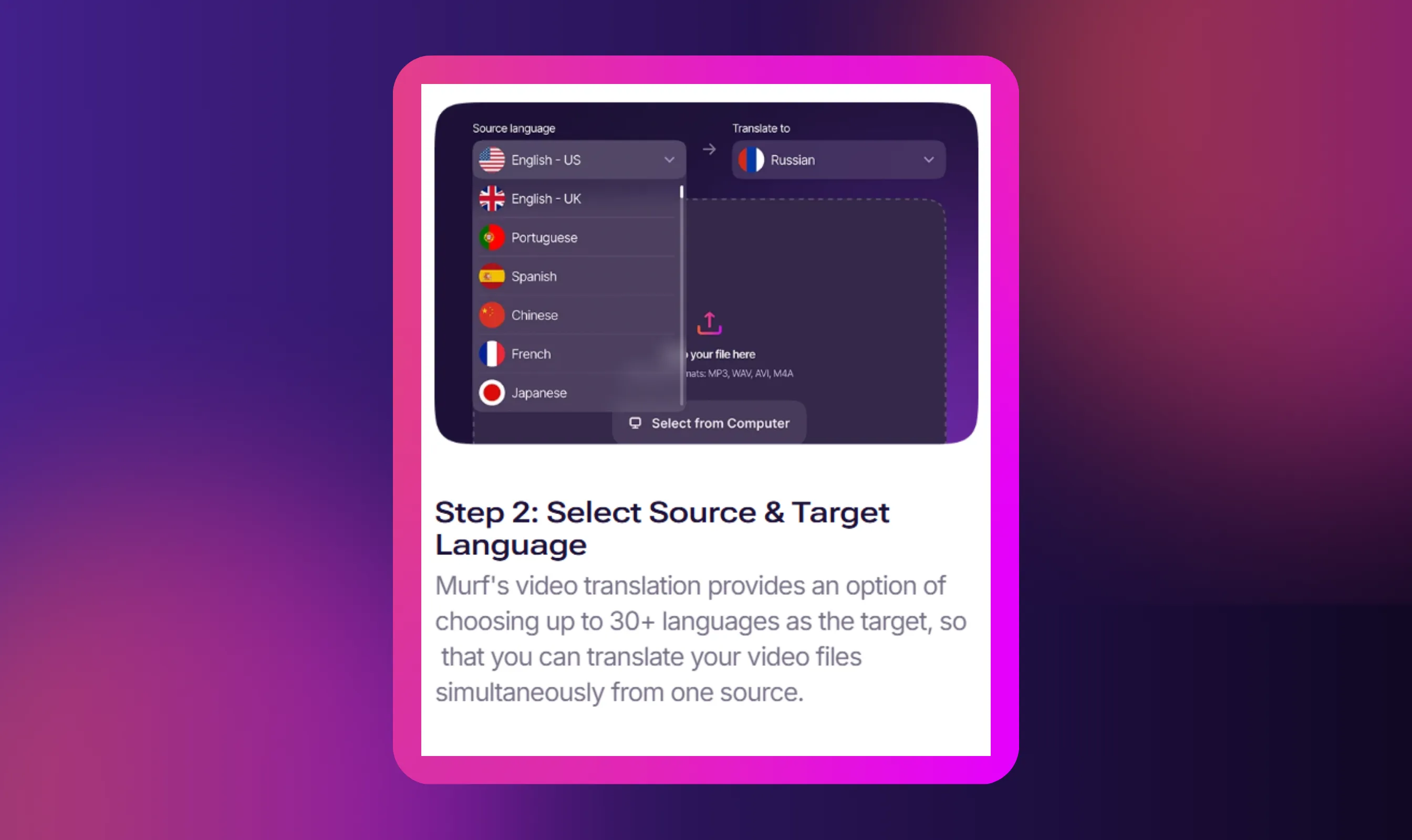
Murf’s system transcribes your original speech, then translates it into the languages you’ve chosen. The transcription and translation happens automatically when you transcribe videos using their AI tech.
This tool can also clone the original speaker’s voice (or let you choose a different voice) and generate a dubbed audio track in the translated language so it sounds natural, instead of robotic.
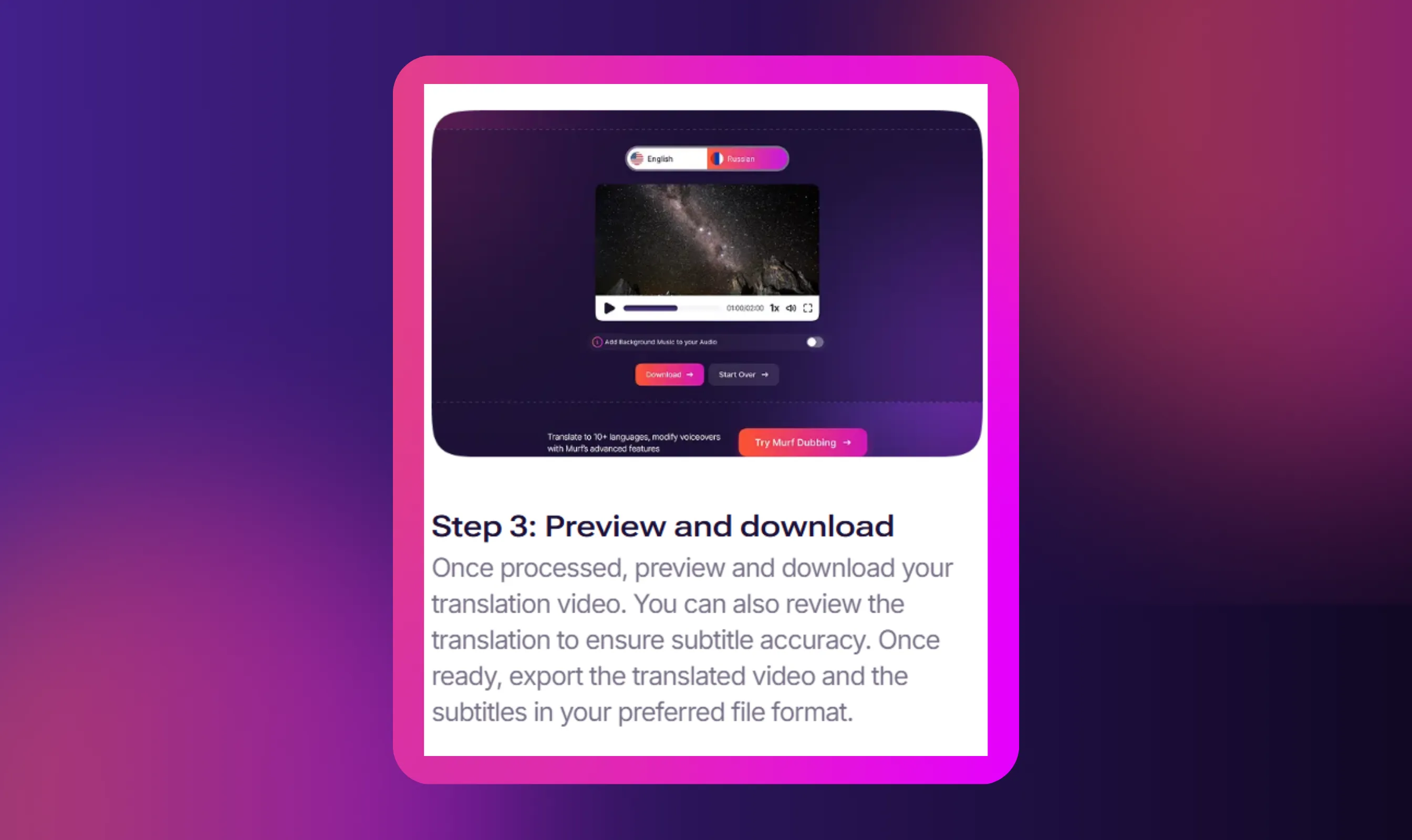
Step 3: Preview & Download
Once you’re happy, you export or download the translated video and the translated subtitles. Murf lets you review subtitle accuracy before the final export. Next, get ready to download videos. That's right, Murf makes translated content accessible in minutes!
Enterprise Options
If you’re working at scale, Murf also offers linguistic review by native speakers to ensure really accurate translations, which is great for brands or training content. This feature is available to Enterprise users only.
Data Security
Murf promises enterprise-grade security (SOC 2, GDPR, ISO compliance), which is reassuring when you’re uploading original content.
2. YouTube Studio

This free video translator is most suitable for generating quick captions and translated subtitles. It’s best used when your original video is already on YouTube and you want prompt subtitle translation.
Steps
- Sign in to YouTube Studio and open Content.
- Click the video you want and go to Subtitles.
- Click Add Language and set the original language. Then choose 'Add' under Subtitles.
- Use Auto-generate to create captions in the original language. Wait for the auto-transcript to appear and correct obvious errors.
- Click Add language again, pick a target language, then select Auto-translate to generate a translated caption track.
- Manually review and edit the translated text so it reads like a native speaker. You can download the caption text file (SRT) to edit offline, then re-upload.
- Publish the subtitles. Viewers can now choose subtitles in different languages on the video.
Why use it: Free, fast, and native to YouTube video uploads.
Downsides: The translation can be literal and may need human edits for tone or idioms.
3. Colossyan
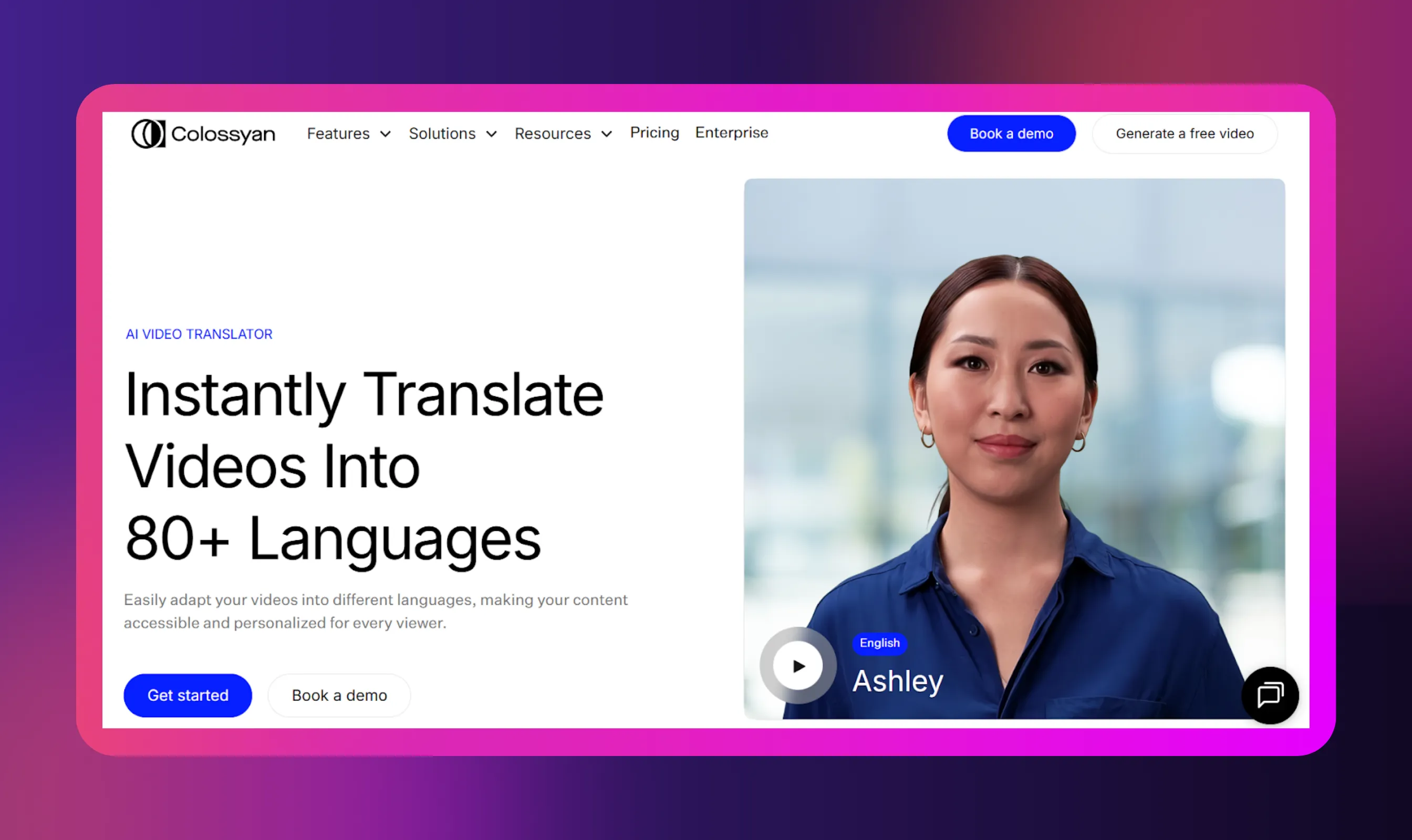
If you need polished voiceovers and subtitles, Colossyan will likely fit the bill. This video translator is best for scripted or training videos where you want clean translated speech and a large voice library.
Steps
- Create a project and upload your video file or paste the YouTube link.
- Let the tool automatically transcribe the original language audio. It will generate a base script.
- Choose the target language(s) you want and let the system translate the script.
- Pick an AI voice from the library for the translated speech and tweak pacing or emphasis if needed.
- Preview the translated video with captions. Edit any lines in the editor to sound more natural or to match timing.
- Export the final translated video and download subtitles as a separate text file (.SRT), if you want.
Why use it: Fast and produces natural-sounding narration for structured content.
Downsides: Can feel a bit “studio” for very casual, off-the-cuff footage.
4. AI Studios by DeepBrain AI

Need flawless translation? Give AI Studios a try. It’s best for projects when you need proper lip sync and a high degree of realism for talking-head videos.
Steps
- Open AI Studios and start a new translation/dubbing project; upload your video file.
- The platform will automatically transcribe the original language audio and generate a script.
- Select the target language and choose whether to use a standard AI voice or a custom/cloned voice.
- Enable the lip sync option so the generated translated speech lines match mouth movements. Preview and adjust timing if something looks off.
- Edit any translated phrases to make sure they sound natural and accurate, then export the translated video.
Why use it: Great for professional presentations, interviews, or videos where visual believability matters.
Downsides: More structured workflow; may need extra edits to keep the tone natural.
5. Canva
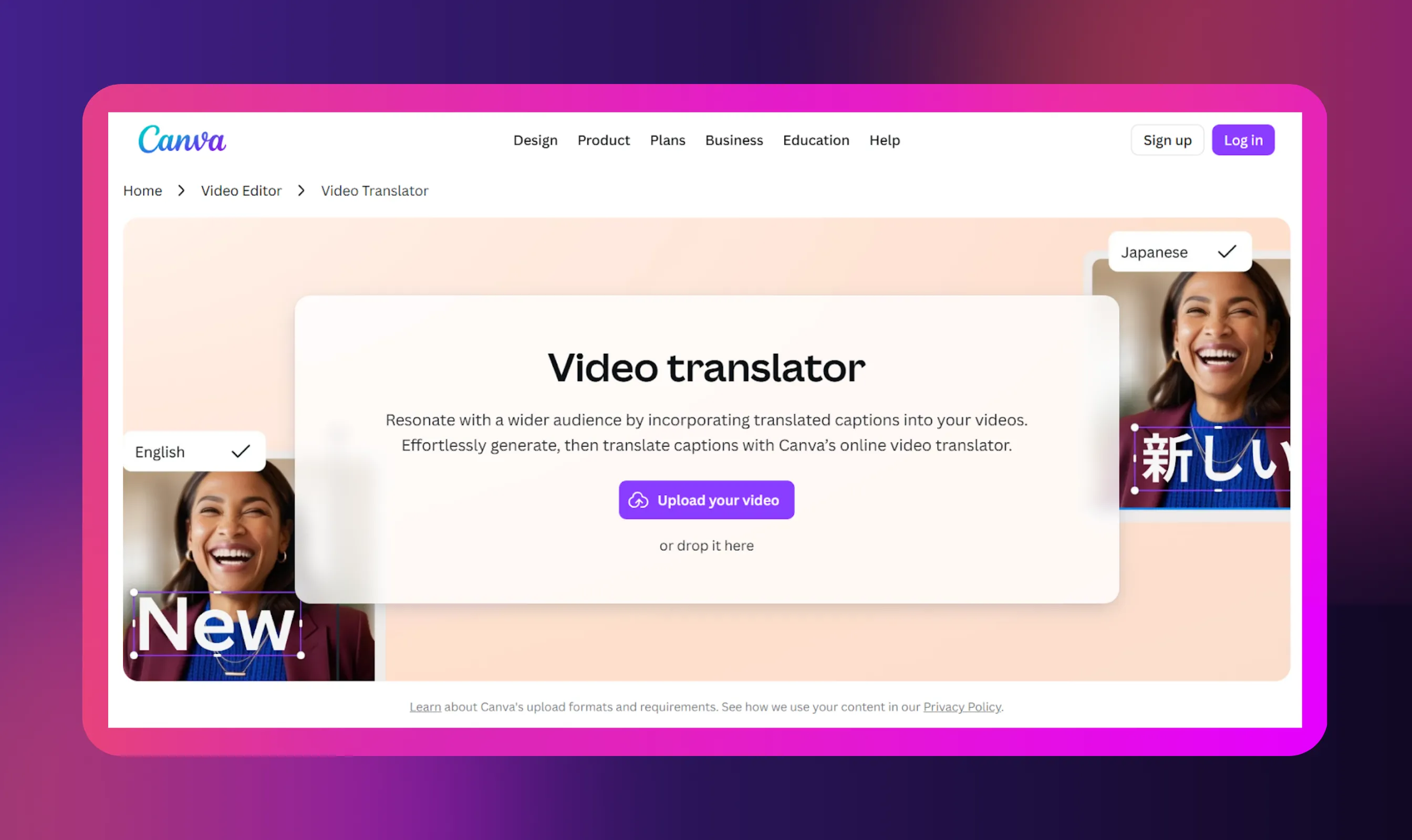
Canva offers an easy all-in-one dubbing as well as subtitle styling. It works best for creators already using Canva who want to handle visuals, subtitle styles, and AI dubbing in one place.
Steps
- In Canva, create a design and upload your video file. Open it on the timeline.
- Use the Subtitles tool to Generate captions in the original language or upload an SRT file if you already have one.
- From the AI dubbing/Translate panel, choose the target language and the number of speakers. Click Dub video.
- Tweak subtitle styles (font, size, position) right in the editor so they fit your visuals and branding.
- Preview the translated video to check timing and pronunciation. Export the final video and download subtitles, if needed.
Why use it: Highly convenient for social clips, demo reels, or marketing pieces where visuals and text matter.
Downsides: Audio controls are less granular than in dedicated dubbing platforms.
6. Google Translate
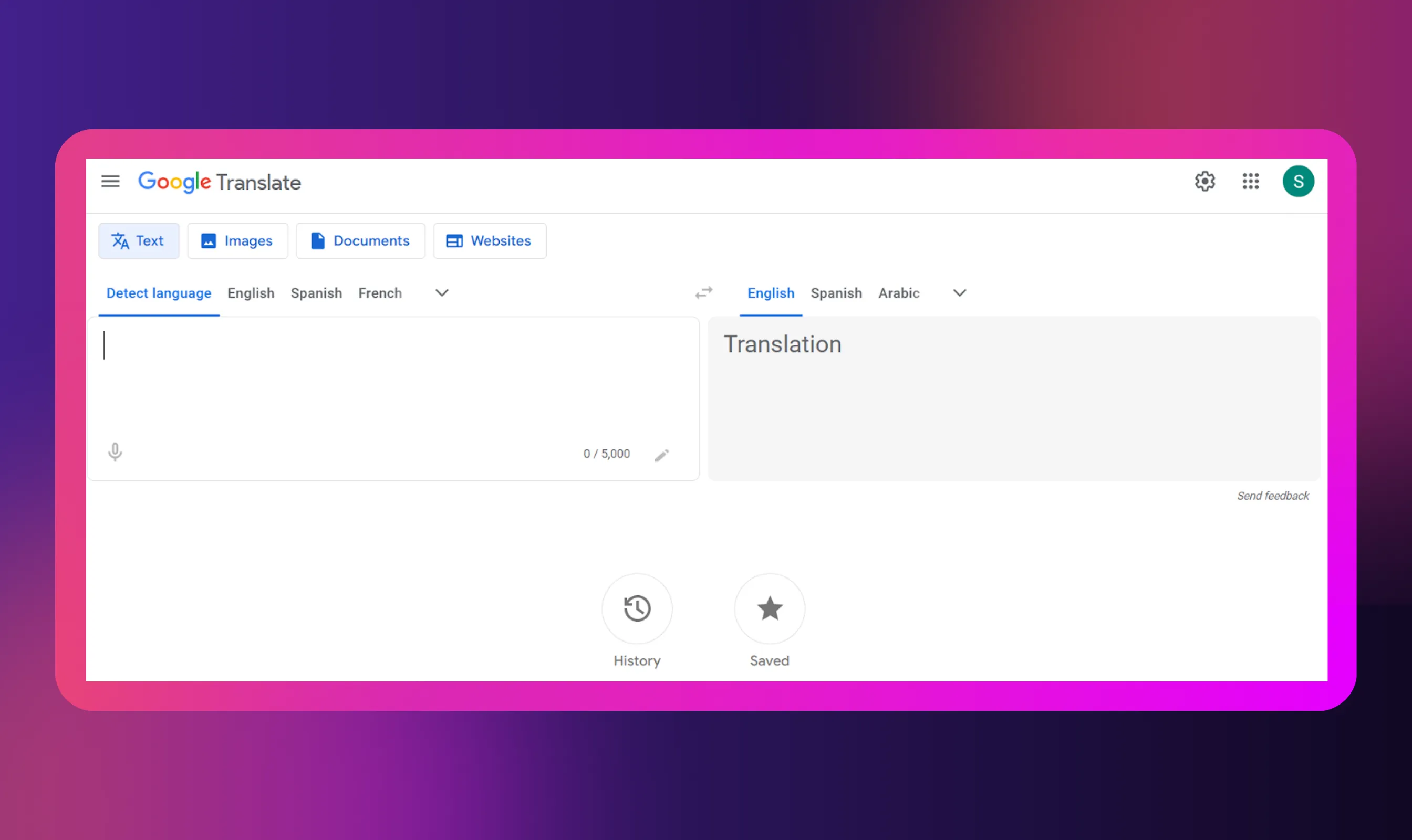
Yes, Google Translate works as a video translator, too. Use it when all you need is subtitle translation (with subtitle files like .SRT or .VTT) or script translation, and not generate translated speech.
Steps
- Export the subtitles from your editor or copy the script manually. You just need the dialogue in plain text.
- Head to translate.google.com and paste the text in.
- Pick the target language. Google Translate supports tons of them, so you’re not limited.
- Copy the translated text back into your editing tool.
- Adjust timing and readability. Make sure everything lines up with the video, and the captions don’t flash too quickly. You may need to tweak some phrasing so it reads naturally.
Why use it: Quick, free, and easy to access if you just need a fast translation or want to repurpose your video content.
Downsides: The translation may need manual polishing to sound fully natural.
Quick Note: Google Translate is not a full video translator, but many creators still use it as part of their workflow because it’s quick, free, and gets the job done. You just take the words from your original video, translate them, and then bring them back into your editor. It’s simple, and for short projects, it works.
Choosing the Right Video Translator
Every platform mentioned here helps you take a single original content file and create versions that reach global markets in other languages. They differ mostly in how natural the translated audio sounds, how much editing control you have, and how quickly you can go from video upload to exported project.
Some tools focus more on simple subtitle files. Others generate full dubbed versions. A few can get the entire project done in just a few minutes. The key is matching your needs to your workflow:
- Want to upload and download in minutes with realistic narration?
- Want captions only?
- Need full lip sync?
- Creating education, marketing, or storytelling content?
Once you answer these questions, the right tool becomes pretty obvious.
Conclusion
All in all, translating a video no longer requires a big budget or a production team. These days, most creators can handle it themselves with a laptop and the right tool. You upload your video, choose the language, and get subtitles or new speech voiceover without spending hours editing.
Tools like Murf’s video translator make the process practical for everyday creators, not just studios. One video can become useful to people who speak completely different languages, and you don’t have to change your message or style to make that happen. That’s the real advantage here.
When someone in another country can understand what you’re saying without struggling through the audio, an audio translator helps your message land as intended. And that’s when content starts to feel personal, not just translated.
Frequently Asked Questions
How Do I Pick the Best AI Tool to Make My Video Multilingual?
.svg)
Start with what you actually need. If you only want subtitles, you don’t need a complicated tool. If you want AI dubbing, look for something that can handle translation, timing, and audio in one place. Murf AI’s video translator is one option because it keeps everything in a single workflow, but whatever you choose should be easy to use and not require a full day of learning. Also check whether it supports the languages you care about and produces output you’d feel comfortable publishing on your channel, site, or brand page.
How Can I Make Sure My Video Sounds Natural in Another Language?
Pick a tool with natural sounding AI voices. Murf AI gives you control over tone and pacing so the person speaking in your translated video doesn’t sound superficial. And if you’re writing subtitles, phrase things the way someone in that language would actually say them. Sometimes a small rewrite can make the translated version feel much more human.
Are AI Video Tools Safe to Use for My Brand Content?
They can be, as long as you’re using a well-known, trustworthy platform and not a random site you found on page 7 of search results. Tools like Murf AI protect your upload and finished file, so your work isn’t floating around the internet. Still, it’s always smart to look at privacy policies and avoid uploading anything that shouldn’t leave your internal systems. Think of it the same way you would with any online tool: trust, but verify.
Do I Need Special Software to Make Videos for Global Audiences?
Not anymore. A lot of tools run straight in the browser. You can translate, voice, subtitle, and download everything without installing heavy programs. Murf AI works like this, so you just log in and get started.
How Can I Make My Videos Understandable for Non-English Speakers?
Start with subtitles in the viewer’s language. It’s the easiest step and helps immediately. If you want to go further, add AI dubbing so people can listen instead of read. Murf can handle the translation and video localization with voice over, which saves a lot of time. What matters most is that someone watching your video doesn’t have to guess what you meant. They just get it.