How to Use Chinese Google Translate: Translate Mandarin & Symbols Easily



Using Chinese Google Translate is one of those small things that ends up saving you in everyday moments.
Imagine this: You’re at a tiny Asian place that’s known for great food, the whole menu is in Mandarin Chinese, and you’re trying not to look completely lost.
So, you open Google Translate, point the camera, and the meaning shows up right there. It’s not magic, just helpful tech doing its job.
Most people only use it to translate text, but it can do a lot more. You can check Chinese characters, draw text characters when you don’t know the pinyin, save translated words you want to remember, or let it continuously translate bilingual conversations.
And it works for both simplified Chinese and traditional Chinese, which covers most situations you’ll run into. Other languages available on this translation tool include French, Portuguese, Korean, Japanese, and more.
This article will break all of that down in a simple way, so you can use it without overthinking anything.
Using Chinese Google Translate: A Complete, Practical Guide
Translating Mandarin Chinese, Cantonese, and handwritten Chinese characters is often easier than people expect. Google Translate offers several ways to do it, and each method works best in a different situation.
You can type text, scan signs, upload images, draw characters by hand, or even run bilingual conversations in real time. This article will walk you through every method in a simple, direct way so you know exactly what to use and when.
Below you’ll find each feature broken down with clear steps, realistic accuracy notes, and useful tips. All technical details are based on reporting, user analysis, and official information from Google.
Steps for Text Input: Fastest for Short Phrases
- Open the Google Translate app or go to the web translate page.
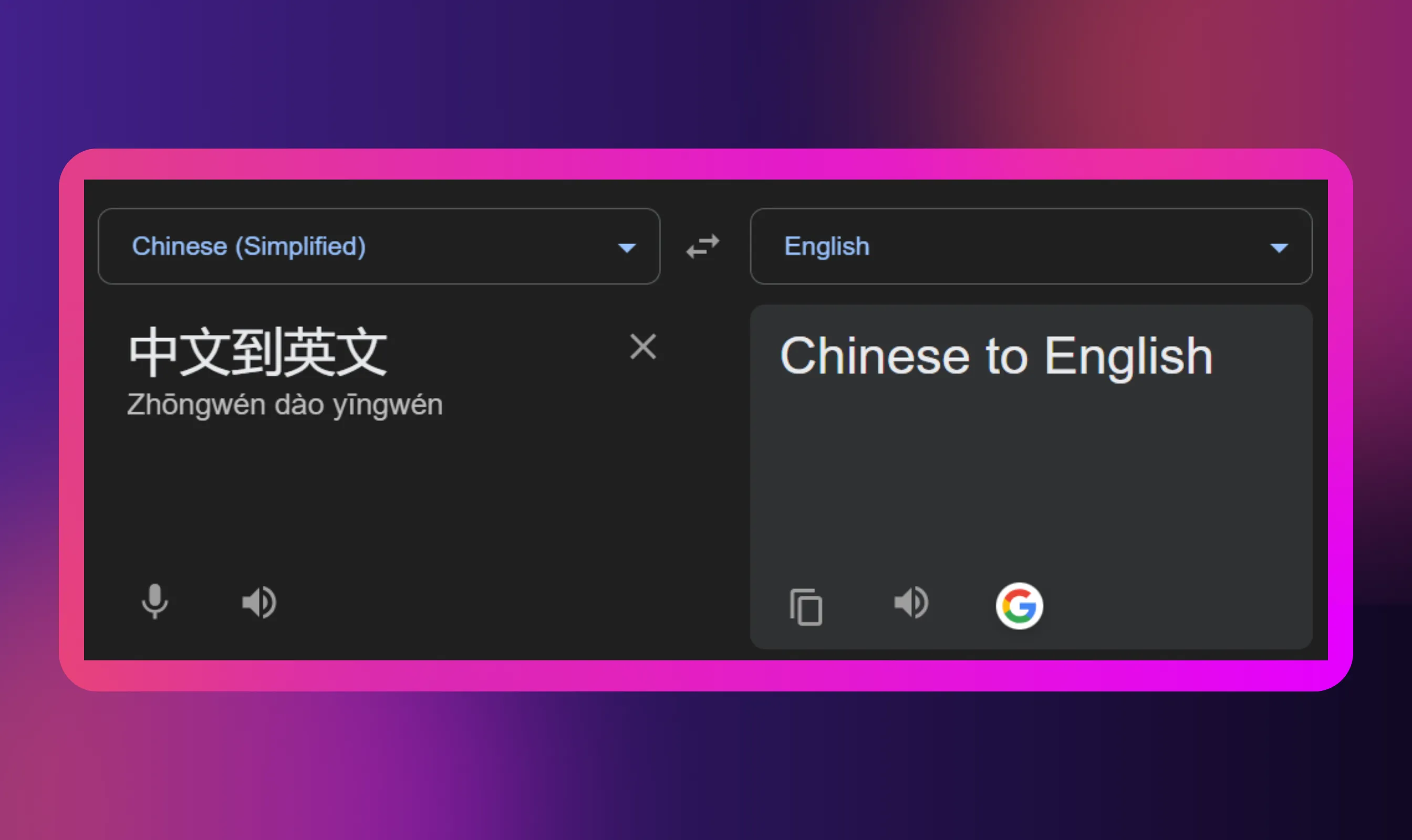
- Set the source language to Chinese or let the app auto-detect. Set the target language to your language.
- Type the sentence or paste translated words you already have. The app shows an instant text translation and usually a pronunciation and pinyin for Mandarin Chinese.
- Tip: When translating formal or technical content, paste full sentences instead of single words. This is because short fragments can lose their context and accuracy.
When to use it:
Use this for clear, standard writing. It’s accurate when you provide full sentences because the model reads meaning better with context.
Steps for Camera/Instant Camera Translation: Read Signs and Menus
- Open the camera mode inside the Google Translate app.
- Point at printed text (menu, sign, or packaging). The app overlays translations on your screen images instantly.
- Use “Scan” for higher accuracy and to select specific lines. Use “Instant” to see live overlays.
- If the script is handwritten or the photo is low-quality, tap “Import” and use a clearer photo from your gallery.
- Tip: Steady your phone and frame only the text you need. It is best to avoid glare and angled shots. Camera OCR (Optical Character Recognition) is great for deriving simple meanings, but not suitable for using with certain names or poetic phrases.
When to use it:
Use this when you need to understand something on the spot and don’t have time to manually type. Live overlay is quick, and the scan mode is more accurate.
Steps for Photo Upload: When the Camera Struggles
- Take a clear photo of the text. In the app, choose “Import” and select the picture.
- Crop to the text area and run OCR. You’ll see selectable extracted text you can translate.
- This often gives better results than live instant mode because the app can process the image more carefully.
- Tip: If the page has stylized fonts or background patterns, try a higher-contrast crop and re-run.
When to use it:
Handy for restaurant menus, long lists, product labels, and anything with stylized fonts.
Steps for Handwriting Mode: Draw Text Characters You Can’t Type
- Tap the handwriting icon in the app.
- Use your finger to draw text characters one at a time. The app suggests matching characters and gives text translation.
- This is handy for unsure pinyin or when you have only a single Chinese character.
- Tip: Try both simplified Chinese and traditional Chinese input if a character doesn’t match. The same stroke can belong to different forms.
When to use it:
Use this for symbols on signs, handwritten notes, packaging, or when someone texts you a character you’ve never seen.
Steps for Conversation Mode: Continuously Translate Bilingual Conversations
- Open “Conversation” in the app. Choose your language and Mandarin Chinese.
- Tap the microphone (or let the app listen continuously). It will perform speech translation and display both sides.
- This works for real-time back-and-forth at a basic level, so you can have a simple chat without swapping phones.
- Tip: Speak clearly and pause after sentences so the app can process each chunk. Background noise and cross-talk reduce accuracy.
When to use it:
Useful when talking to drivers, store staff, or anyone who doesn’t speak your language. Just keep sentences short and avoid overlapping speech.
Steps for Tap to Translate: Translate Inside Other Apps
- Enable Tap to Translate in settings.
- When you copy text characters in any app, a small Google Translate bubble appears. Tap it to see the translated words without leaving the app.
- This is great for translating chat messages or snippets from a browser.
- Tip: If the bubble doesn’t show, check permissions and that the app is allowed to run over other apps.
When to use it:
Great for messaging apps, reading comments, browsing browser-based sites, or checking phrases you see in social media posts.
Steps for Offline Mode: When There’s No Internet Connection
- Download the simplified Chinese and/or traditional Chinese offline language packs in the app settings.
- Offline translation supports text translation and some camera functions but is usually less accurate than online because it lacks cloud processing.
- Tip: download both packs if you travel across regions that use different scripts. Keep the packs updated when you have Wi Fi.
When to use it:
Good for trains, long flights, rural areas, and international travel. Just remember that offline results are usually less accurate.
Steps for Using Pinyin, Tone, and Pronunciation Help
- After any text translation select the original Chinese characters to view pinyin and hear pronunciation.
- Use these to check tone and rhythm when speaking. For idioms or slang, pronunciation alone won’t convey context.
- Tip: Use audio playback to check pronunciation before saying something out loud, especially names or menu items.
When to use it:
Useful when practicing speaking, ordering food, or checking pronunciation before you say something out loud.
Steps for Saving Phrases and Building Quick Reference
- Use the star or phrasebook icon to save translated words and useful phrases.
- You can build a small list of restaurant phrases, directions, or travel essentials. This saves repeated lookups and keeps key translations offline.
- Tip: Add notes because context matters. Mark whether a phrase is formal, slang, or dialectal.
When to use it:
Use this when studying, or when you see repeated phrases on signs, apps, or packaging.
Developer Tools and Files: When You Need Programmatic or Bulk Translation
- Google offers Translate APIs and tools for developers to translate files, websites, or app text. This is useful for localization or translating files in bulk.
- API-based translations can be automated but require review for quality and cultural fit.
- Tip: Never publish raw machine output for customer-facing content without human review.
Accuracy Notes: What You Should Expect
Machine translation for Chinese has improved a lot, especially with updated models and more training data. Accuracy is strong for everyday language, instructions, signs, and casual writing. It still struggles with idioms, cultural references, tone-heavy expressions, poetry, and slang.
Cantonese is also available, but written Cantonese doesn’t always match Standard Chinese, so outputs can vary.
If something looks off, try:
• Adding more context
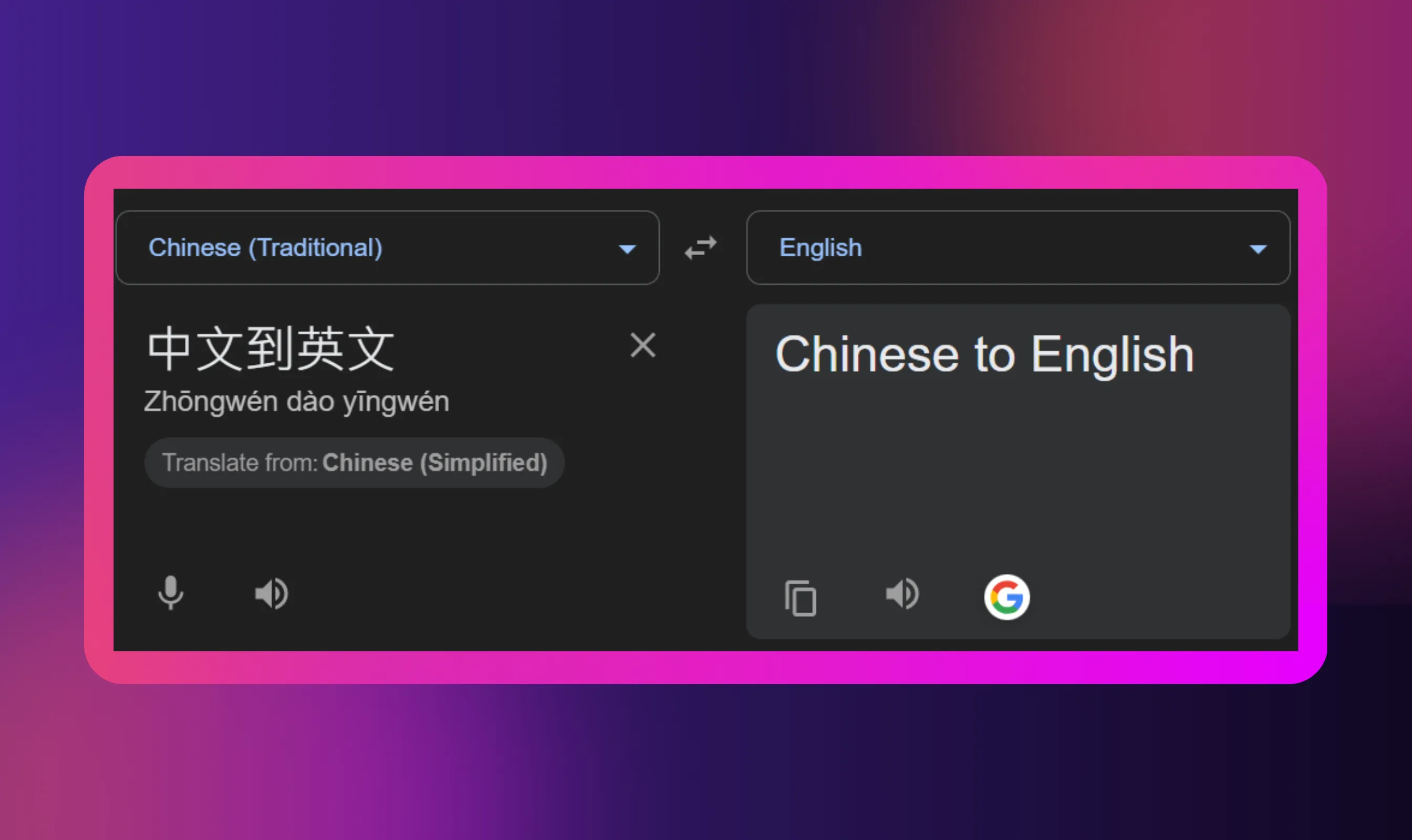
• Switching between simplified and traditional Chinese
• Using the scan feature instead of instant camera
• Uploading images for clarity
• Checking pronunciation to confirm tone
Quick Bug Fixes & Troubleshooting
• Update the app if camera or voice features glitch.
• Reinstall if instant translation stops working.
• Redownload offline Chinese packs if accuracy dips.
• Check camera and mic permissions for conversation mode.
Using Murf to Make Sense of Mandarin Audio and Video
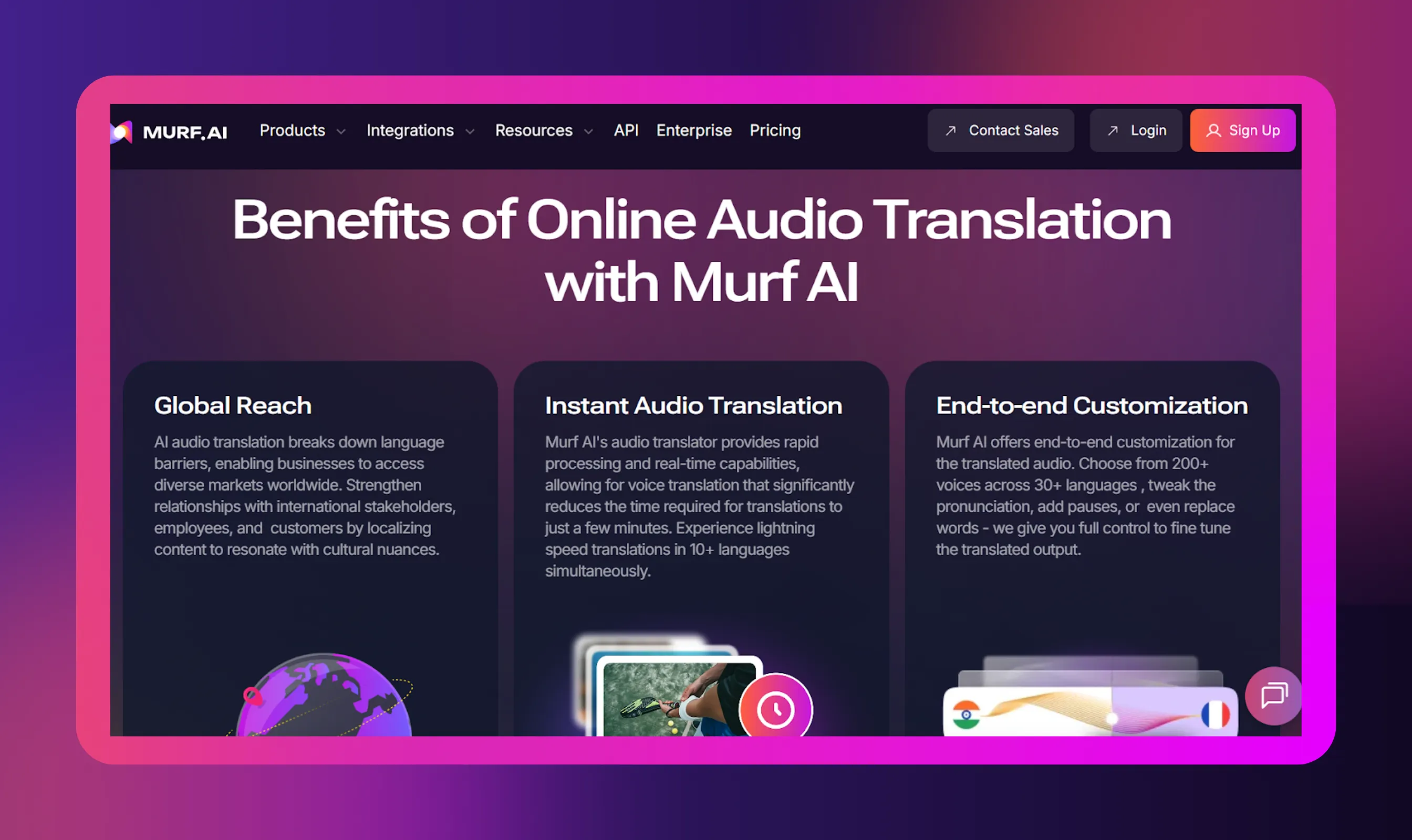
Once you get comfortable translating Mandarin text, the next headache usually shows up in the form of spoken content. This could be a voice note from a client, a product walkthrough recorded in Shanghai, or even a long interview where the speaker barely pauses for breath. These are the moments when you realize you need something built for audio, and Google Translate stops being useful.
This is also exactly when Murf’s free Video Translator tool comes in, in the most genuinely practical, everyday sense. With these AI-powered tools, you can upload a Mandarin audio file or a full video, and let the system handle the translation automatically.
The best part is that it works across formats. Murf pulls the speech, translates it, and gives you something you can actually work with. It’s especially helpful for people who deal with multilingual content on a regular basis, like content creators, teams at large companies, translators, educators and researchers, marketing professionals.
If you often find yourself staring at a Mandarin audio file wondering how to even begin, this is the kind of tool that quietly saves your entire workflow.
Conclusion
If you’ve ever tried to make sense of Mandarin Chinese or unfamiliar Chinese characters, the tools we covered take a lot of the pressure off. Google Translate handles most everyday tasks.
You can translate text, scan printed material with the camera, or check something you found online without much effort. And when you need help to translate voice or video, Murf’s Video & Audio Translator tools step in so you’re not piecing things together on your own. Using both gives you a practical setup that makes working with Chinese a lot easier, no matter the format.

Frequently Asked Questions
How accurate is Google Translate for Chinese?
.svg)
Accuracy varies. Google Translate handles simple sentences, menus, and short content well. It struggles with slang, idioms, and cultural nuance. Use it for general meaning, not final translation.
How do I check if a Chinese translation is correct?
Back-translate using Google Translate, check individual text characters in a dictionary, or compare with another tool. When accuracy matters, ask a native speaker. It’s still the most reliable way to confirm translated words.
How to use Google Translate Chinese to English?
Choose Chinese on one side and English on the other inside the app. You can type, paste, speak, or use instant camera translation. The tool recognizes both Simplified Chinese and Traditional Chinese. It can also translate bilingual conversations in real time.
How can I translate Chinese words I see online?
Use the Google Translate browser extension and select translate. For images or screenshots, use the Images tab or scan the screen with your phone’s camera.
How do I translate text written in Mandarin if I can’t type it?
Use handwriting input and draw text characters. If the text is printed, scan it with the camera. Screenshots work too since the tool can read images instantly and translate them into a different language.