How to Turn off Text to Speech on Chromebook



Key Takeaways
- ChromeVox and Select to Speak are robust accessibility features, but they can get activated accidentally.
- Turning off text to speech on a Chromebook is simple through the Accessibility settings or the Ctrl + Alt + Z shortcut.
- Built-in TTS tools offer only basic voices and minimal customization, which works for essentials but not for expressive content.
- Third-party TTS tools offer broader voice choices, more natural accents, and better support for multilingual users.
- Murf delivers studio-grade clarity, word-level control, and realistic expression across 200+ voices. It also handles real-time TTS for apps and voice agents with ultra-low latency and scalable performance.
- If you want voices that feel human and a workflow that doesn’t fight you, Murf is the clear upgrade over default Chromebook options.
Text to speech is one of those features that quietly sits in the background on Chrome OS until the moment it doesn’t.
To put it simply, ChromeVox is the main screen reader, reading everything you move across on your Chromebook. Select to Speak is the lighter version, meant for those times when you just want a specific line or paragraph read out loud instead of running full narration.
They’re helpful when you need them, but they can also switch on without warning and suddenly you find your Chromebook talking through every move you make. If that’s what’s happening, you’re not imagining it; it’s a common slip.
The good news is that turning these features off is simple once you know where to look. In this article, you’ll learn exactly how to turn off text to speech on Chromebook, how to shut down ChromeVox or Select to Speak, and how to get your device back to quiet mode without wrestling the Settings menu.
Turning off Text to Speech on Chromebook: A Step-by-Step Guide
Turning off the text to speech feature on Chromebook is a straightforward process. It has nothing to do with the "Hey Google" voice command or Google Assistant. To disable text to speech on Chromebook, just follow the steps given below. You can easily disable these built-in tools through the device's settings or text to speech settings.
Step 1: Accessing the Chromebook Settings Menu
Open settings panel. To do that, click the clock in the lower-right corner of your screen. Next, select the gear symbol to access Settings.

Step 2: Navigating to the Accessibility Section
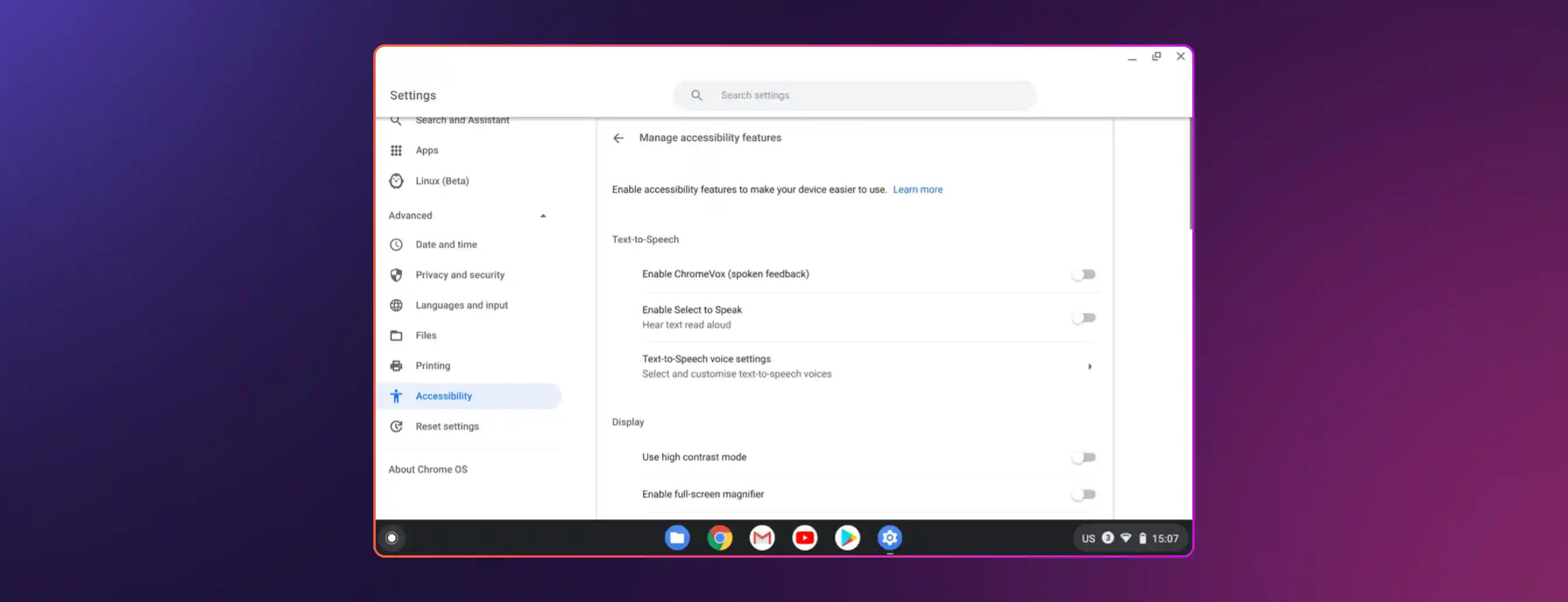
In the Settings menu, scroll down until you reach the Advanced section. Click to expand this section, then search for Accessibility. Select Accessibility to uncover additional options for accessibility tools.
Step 3: Disabling ChromeVox (Spoken Feedback)
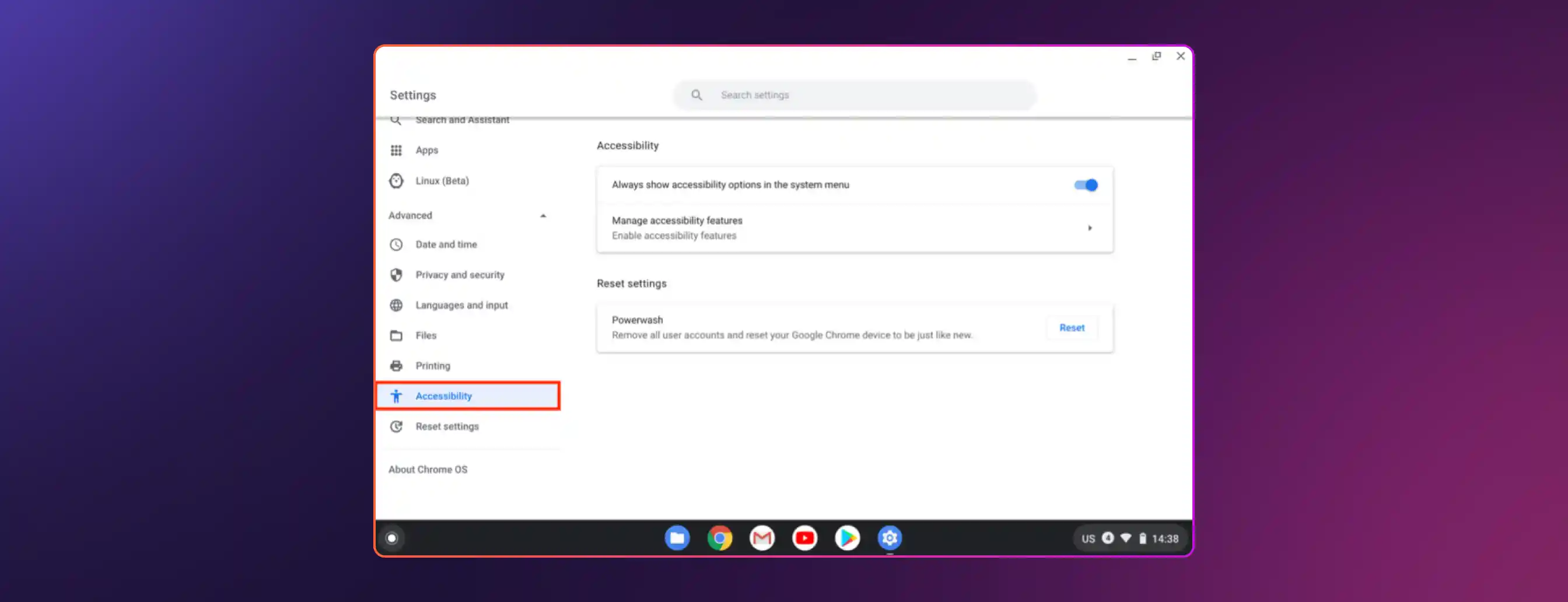
In the Accessibility settings, find the option to Manage Accessibility Features. Locate the ChromeVox option, also known as Spoken Feedback, and set the toggle to off. This will turn off Chrome voice assistant.
Step 4: Turning Off Select-to-Speak
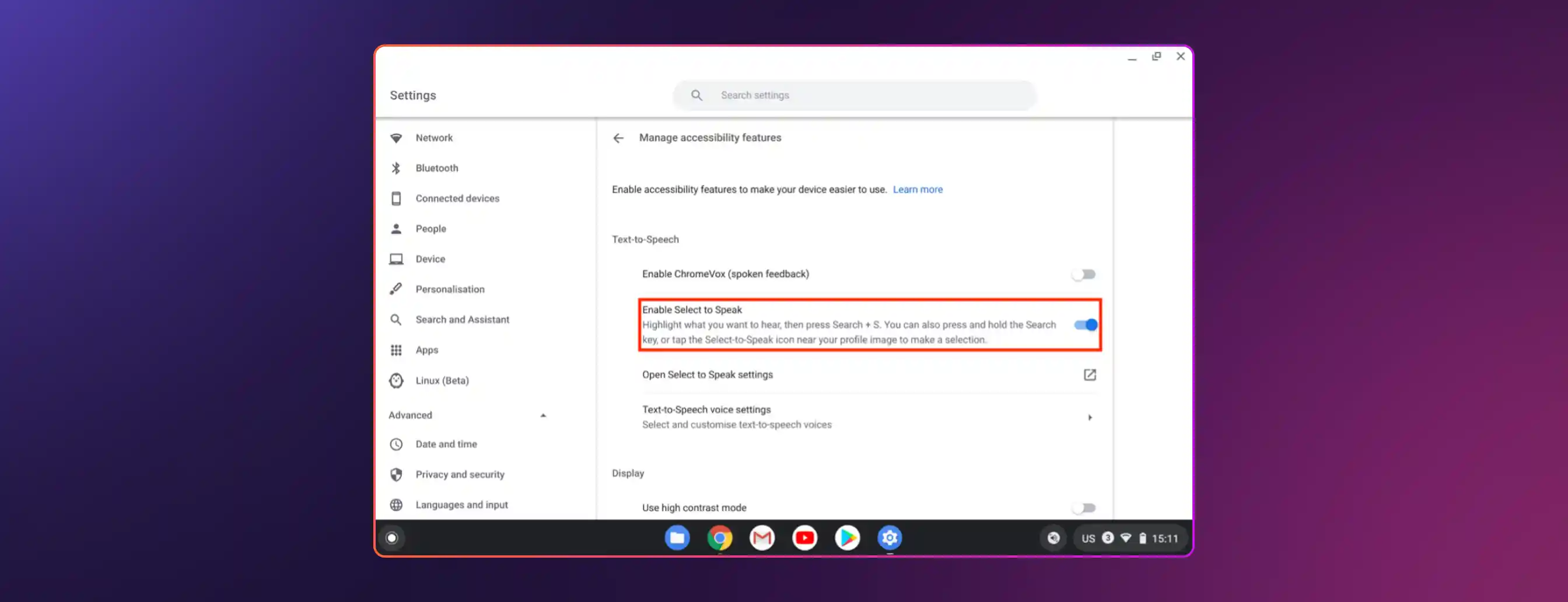
ChromeVox offers ongoing spoken feedback, whereas the Select to Speak feature reads aloud the text you select when you opt for it. To disable this feature, simply scroll down in the Accessibility menu until you find the Select-to-Speak option and toggle it off. This will completely turn off Chromebook voice assistant.
Step 5: Verify the Changes
Once you disable text to speech i.e. both ChromeVox and Select-to-Speak, return to your Chromebook's main screen and interact with it to verify the complete deactivation of the text to speech feature. It's important to observe that there is a lack of spoken feedback while navigating the interface.
If ChromeVox was enabled by accident, you can use the keyboard shortcut, i.e., Ctrl + Alt + Z to toggle it off instantly. To enable ChromeVox spoken feedback you can follow the same steps and switch on the toggle. However, if you're looking for voice functionality with added customization, look into third-party text to speech tools for a more personalized experience.
Why Opt for Third-Party TTS Tools Over Built-In Solutions?
Chromebooks offer built-in text to speech functionality, but third-party TTS tools can deliver a much better user experience with advanced features and customization options.
Here's why choosing third-party TTS solutions could be a more beneficial choice:
1. A Wide Range of Voice Options
ChromeVox gives you the essentials, but third-party tools open the door to a much wider range of voices. You can pick tones and accents based on tone, age group, accent, or personality. No matter if you enjoy a warm, soothing voice for your leisure reading or a clear, authoritative tone for professional documents, third-party TTS tools provide remarkable flexibility.
2. Language Support and Accents
There are many languages available for ChromeVox, including Catalan, English (United Kingdom), Spanish, Swedish, Hebrew, and more. Yet it may seem restrictive for users seeking greater flexibility in language or accent choices.
Individuals seeking diverse accents or languages or those in need of assistance with less common languages may discover that ChromeVox's features fall short.
Conversely, third-party TTS tools tend to go broader and deeper, which helps if you’re bilingual, learning a new language, or just prefer a certain accent for clarity or comfort.
3. Real-Time Web Article and Email Reading
Numerous third-party TTS applications provide browser extensions that can read aloud from web content and emails in real time. They’ll often highlight text as they read, making it easier to follow along or multitask. If you deal with a lot of information online, this can genuinely change how you process content.
Meet Murf Text to Speech: Your Comprehensive All-in-One Solution
ChromeVox provides a handy text to speech feature on Chromebooks, but Murf AI elevates the experience with its advanced and customizable options, making it a superior choice for users with varied needs.
Here's a breakdown of its key features:
1. Natural-Sounding Voices
Murf AI stands out with its impressive selection of over 200+ realistic, studio-quality voices in more than 35+ languages, unlike ChromeVox, which has a more limited range of voices and basic customization options.
Users have the opportunity to select from a diverse range of accents, tones, and genders, enabling them to customize the voice to their liking. The flexibility offered here is essential for crafting content that strikes the perfect balance between professionalism and personalization an aspect that ChromeVox falls short on.
2. Advanced Voice Customization
ChromeVox offers basic spoken feedback, whereas Murf AI enables a high level of customization for voice output. Users have the ability to adjust key elements such as pitch, speed, and emphasis to match the tone of their content.
Incorporating pauses allows speech to flow naturally, creating a more immersive experience for listeners. ChromeVox offers limited detailed controls, confining users to preset voice settings.
3. Murf Speech Gen 2 Features
Murf Speech's Gen 2 upgrade brought many advanced features that enhance the user experience even more, such as:
High-Fidelity, Creator-Friendly TTS
Here's a compact rundown of what Gen 2 brings to the table:
- Studio-grade clarity with a native 44.1 kHz output that handles detailed audio textures
- Our deep linguistic modeling layer boasts an impressive 99.38% word-level pronunciation accuracy
- Voices trained on extensive, ethically sourced data, resulting in lifelike expression and smoother pronunciation
- Word-level emphasis, so you can spotlight specific phrases without redoing entire lines
- Fine-tuned control over pitch, pace, pauses, and emotional tone to match the context of your content
- Broad multilingual support with accents that feel natural, not auto-translated
In short, Gen 2 gives you the freedom to shape the voice the way you’d direct a real narrator.
4. Murf Falcon: Real-Time TTS for Apps, Agents, and Live Interactions
Falcon is Murf’s TTS engine built for speed and scale. It's ideal when you need voices that respond instantly rather than just narrate content.
Here’s what it adds:
- Ultra-low latency (55 ms), making voice responses feel immediate in interactive apps.
- Time-to-first-audio around 130 ms, so replies start almost as soon as text is processed.
- Support for 35+ languages and smooth code-switching, helpful for multilingual audiences or regional customer support.
- High pronunciation accuracy and strong prosody, resulting in voices that sound clear even with complex names or technical terms.
- Built for scale, capable of serving large workloads and parallel voice requests without breaking rhythm.
Where Gen 2 is great for content creation, Falcon is built for products and experiences that need live, responsive speech.
Most of us would notice text to speech only if it suddenly starts speaking at the worst possible moment. Thankfully, turning it off is easy. But once you look past that quick fix, you start to see the limits of the built-in tools. ChromeVox and Select to Speak are okay for basic accessibility, but they’re not exactly the voices you’d want to hear if you had more choices.
That’s where tools like Murf make a real difference. When you’re creating content, teaching, or just trying to make your workflow smoother, the quality of the voice matters more than you think. Murf's AI tools give you voices that sound natural, features that actually feel useful, and enough control to shape the audio the way you want. After hearing something that feels genuinely human, it’s hard to go back to the robotic defaults; and honestly, you won’t want to either.

Frequently Asked Questions
How do I turn off text to speech on my Chromebook?
.svg)
To turn off text to speech on your Chromebook, go to Settings > Advanced > Accessibility. Then, toggle off both ChromeVox (Spoken Feedback) and Select-to-Speak options.
Can I turn off ChromeVox without affecting other accessibility features?
Yes, turning off ChromeVox will only disable the spoken feedback feature. To completely disable google assistant and other accessibility options like the high contrast mode or magnification you will need perform other steps.
Can I use third-party TTS tools on my Chromebook?
Absolutely! Many third-party TTS tools, such as Murf AI, offer browser extensions that work seamlessly on Chromebooks and provide enhanced voice customization and flexibility.
Why should I choose third-party TTS tools over Chromebook’s built-in options?
Third-party tools often offer more customization, a wider selection of voices, and better support for multiple languages and accents than built-in options like ChromeVox.