Mastering Text to Speech Windows in Simple Steps




Key Takeaways
- By 2031, the global TTS market is expected to hit a valuation of $12.5 billion, which sheds ample light on the bright future of this technology in creating digital content.
- Windows text to speech is built-in and can be launched instantly with 'Win + Ctrl + Enter,' making it easy to read documents, web pages, and apps aloud.
- Originally created for accessibility, Windows TTS is now widely used for multitasking, learning, and reducing screen fatigue.
- Users can add and switch languages via Settings, unlocking multiple voices and accents for more versatile reading.
- Narrator supports shortcuts to read individual words, paragraphs, or full pages, improving speed and navigation.
- Windows TTS has practical use cases beyond accessibility, including multitasking, proofreading, studying, and consuming long-form content hands-free.
- Advanced platforms like Murf offer over 200 natural voices in 35+ languages, plus fine-tuned control over pitch, speed, and emphasis.
Text to speech on Windows has matured into a genuinely useful tool, not just a quiet accessibility add-on buried in the settings.
It takes written text and turns it into clean, understandable speech, which is a lifesaver when you’re juggling tabs, reading long reports, or trying to get through a web page without staring at the screen.
And with the global TTS market projected to hit $12.5 billion by 2031, it’s clear that this tech is shaping how people work on their Windows devices.
This article will walk you through how text to speech works in Windows, how to enable it without hunting through menus, and where advanced tools like Murf fit into the picture.
The goal is simple: help you use Windows text to speech in a way that actually supports your daily workflow, instead of feeling like one more feature you’ll never touch.
How to Activate Text to Speech on Windows
Whether you’re using it for accessibility or simply to improve productivity, here’s how you can enable text to speech on Windows:
Approach 1. Quick Activation
The fastest way to start Narrator, Windows’ built-in text to speech tool, is the keyboard shortcut 'Win + Ctrl + Enter.' It works as an instant on off switch, so you can start listening or shut it down without digging through menus.
Approach 2. Through Settings
If you prefer a proper setup, open Settings from the Start menu, then head to
Ease of Access > Narrator and toggle the feature on.
This opens the Narrator Home screen, where Windows walks you through layout changes, modifier keys, and the basic controls.
Customizing Narrator Settings
Once Narrator is running, a dialog box will appear on your screen, explaining keyboard layout changes and other features. Here, you can fine tune the voice. Adjust the speaking rate, pitch, and volume, or pick from different text to speech voices for Windows if you want something more natural. These settings make a big difference in long listening sessions.
Keyboard Shortcuts for Better Control
Narrator comes with a long list of shortcuts to help you move faster. For example:
- 'Narrator + Ctrl + +' raises the text to speech voice volume
- 'Narrator + Ctrl + -' lowers the voice
There are dozens more for navigating text, reading elements on the screen, and managing playback. Once you get used to them, reading text aloud on Windows becomes a lot more fluid.
How to Use Text to Speech on Windows?
Once you have activated the text to speech feature on your Windows device, it’s time to explore how to use it effectively using various keyboard commands. Windows offers several alternate shortcuts and methods to utilize text to speech, making it a versatile tool for various users.
Using Keyboard Shortcuts
Narrator is built around shortcut-based navigation, and once you get the hang of them, you barely need your mouse.
- 'Narrator + Ctrl + K' reads the current paragraph
- 'Narrator + Ctrl + I' reads the entire page
These commands help you jump straight to what you need instead of scrolling through everything manually.
Scan Mode for Easier Navigation
If you want something more guided, turn on Scan Mode with Caps Lock + Space. It lets you move through text and on-screen elements using single keys.
- H for headings
- B for buttons
- D for landmarks
It’s especially handy on web pages and long text documents where you’d usually spend time hunting for the next section.
Adjusting Voice Settings
Comfort matters when you're listening for long stretches. Inside Narrator settings, you can tweak the voice speed, pitch, and volume or switch to other natural voices available on your Windows device. A small change here can make the entire experience feel more natural and less robotic.
Using Read Aloud in Microsoft Edge
If you read a lot online, Edge’s built in Read Aloud option is a simple win. Right click any web page and select Read aloud, or use 'Ctrl + Shift + U.' You’ll get smooth playback with pause, skip, and voice options built right into the browser.
Customizing Narrator Voices
Windows also lets you download additional text to speech in different languages and accents. It’s a quick upgrade if you want more natural sounding voices or need multilingual support for work or study.
Use Cases for Text to Speech on Windows
Text to speech on Windows is not just limited to reading out digital content; it extends its capabilities to various applications, enhancing productivity and multitasking. Here's how the potential of TTS can be maximized in different scenarios:
Microsoft Office and Other Productivity Tools
Text to speech isn’t just something tucked away in Windows settings; it’s quietly built into the tools people use the most. In Word and PowerPoint, the 'Speak' command can read your document or deck out loud while you work.
Adding it to the Quick Access Toolbar gives you instant playback, which is especially useful when you’re reviewing dense reports or trying to catch issues that slip past silent reading. It’s one of those features that feels basic until you use it consistently, and then it becomes part of your workflow.
Browsing Web Pages with TTS
When you’re dealing with long articles or research-heavy sessions, the built-in 'Read Aloud' option in Microsoft Edge is surprisingly efficient. A right click or 'Ctrl + Shift + U' starts the narration and lets you move through the page hands-free.
It’s a cleaner experience than most browser extensions, and for people who spend hours online, it genuinely cuts down on screen fatigue.
Proofreading
Listening to your writing is one of the most reliable ways to catch what your eyes gloss over. TTS exposes awkward transitions, repeated words, pacing issues, and other factors you simply don’t notice when you’ve been staring at the same page for too long. Writers, students, marketers, or anyone refining client-facing documentation will find this to their advantage.
Hands-Free Multitasking
A big part of TTS’s value is how it adapts to real life. You can keep up with reports while cooking, listen to an article during a break, or go through emails without hovering over the screen.
And for visually-impaired users, this isn’t just convenient; it’s the layer of access that makes Windows usable in a practical, day-to-day sense.
Utilizing Shortcuts for Efficiency
Power users lean on shortcuts because they shave seconds off everything, and TTS is no exception. While 'Win + Ctrl + Enter' brings up Narrator instantly, Edge’s 'Ctrl + Shift + U' kicks off 'Read Aloud' without you even touching the mouse. Once you build these into muscle memory, navigating text, files, and web pages with speech becomes noticeably faster.
Murf: A Better Alternative to Windows Text to Speech

While Windows text to speech software covers the essentials, Murf pushes the experience into a different league by enabling the creation of high-quality audio files. It’s built for creators, teams, and brands that need more than a basic screen reader or simple read-aloud tool. Here’s where it really distinguishes itself.
Realistic and Diverse Voice Options
Windows gives you a handful of system voices. Murf gives you an entire library. You get over 200 unique natural-sounding voices in 35 languages and 10 accents, each with its own tone and personality. For anyone producing content for a global audience, that range alone makes a noticeable difference.
Enhanced Voice Customization
Standard Windows TTS lets you adjust speed or switch voices, and that’s about it. Murf gives you deeper control: pitch curves, emphasis controls, timing tweaks, pauses, pacing, and more. You can shape a voiceover to match the intent of your content, whether it’s an e-learning module, a product walkthrough, or marketing collateral that needs a specific rhythm.
Smooth, Intuitive interface
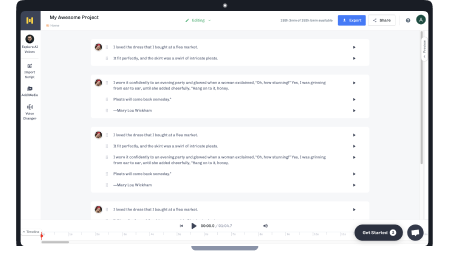
Murf is built for people who don’t want to wrestle with technical menus. You paste your script, pick a voice and language, adjust what you need, and generate your audio file. That’s it. The workflow is straightforward enough for solo creators yet powerful enough for teams producing content at scale.
Multiple Use Cases
E-learning courses, explainers, social videos, audiobooks, pitch decks, internal training material, Murf handles them all. The speed and consistency of output make it a practical upgrade for anyone working with recurring voice needs.
Advanced TTS API: Murf Falcon
While Murf’s studio is built for creators, its Falcon API takes users several steps ahead. It is built for developers and businesses that need fast, enterprise-level TTS performance. It’s the engine behind multilingual assistants, IVRs, customer support bots, real-time agents, and basically anything that demands low-latency (55ms model inference; 130ms end-to-end latency) voice generation. Think of it as the power unit that delivers natural speech at scale, far beyond what Windows’ built-in speech feature is designed for.
Steps to Install Murf Voices on Windows Devices
- Start by downloading and installing the Murf Voices Installer. Once installed, log in to your Murf account.
- Explore and select from a variety of voices available in different languages.
- Customize your chosen voice by selecting a style and adjusting the speed and pitch. You can preview your selection to ensure it’s just right.
- When you’ve found the perfect voice, click ‘Install.’ This process should be quick, taking only a few seconds.
- After installation, either open your Windows applications or restart them if they were already open.
To Wrap Up
Windows’ text to speech has become one of those tools you don’t notice until you actually use it, and then you wonder why you didn’t turn it on sooner. It reads the heavy stuff when your eyes are done for the day, helps you move through long docs without staring into the computer, and generally makes screen time feel a little less intense.
And when the built-in voices hit their limit, that’s where Murf naturally fits in. While Windows handles the quick, everyday reading; Murf steps in when you need something cleaner, more expressive, or good enough to put in front of clients. Together, they cover the whole spectrum without feeling like you’re forcing anything. It’s just a smarter, easier way to work with words in a screen-first world.

Frequently Asked Questions
How do you use text to speech on Windows?
.svg)
To use text to speech on Windows, activate the Windows Narrator by pressing Win + Ctrl + Enter. This enables the built-in screen reader feature, which can read aloud text from documents, web pages, and other interfaces. For specific tasks, use keyboard shortcuts like Narrator + Ctrl + I to read an entire page or Narrator + K to read a specific word.
How do I change my text to speech language in Windows?
To change the language in Windows, follow these steps: Settings > Time & Language > Speech. Here, under the ‘Manage voices’ section, you can add new languages for text to speech. Once added, select your preferred language from the ‘Text to speech’ options to change the narration language.
Can Windows read text aloud?
Yes, Windows can read text aloud using its built-in feature, Windows Narrator. This tool is designed to assist users by reading out text displayed on the screen, making it easier to access digital content for those with visual impairments or learning differences.
What does Windows Narrator do?
Windows Narrator is an accessibility feature in Windows that reads the text on your screen aloud. It’s designed to help visually impaired users navigate their computers and access content.
Is Windows Narrator a good screen reader?
Windows Narrator serves well for basic screen reading, being an integral part of Windows. For advanced needs, Murf is a preferable option. It offers over 120 voices across 20+ languages, customizable voice tones, and pitch control, providing a more dynamic and tailored text to speech experience.